
Guide
Setting routes
For setters: routes, signs, walls, inventory, defects.
Staff tools
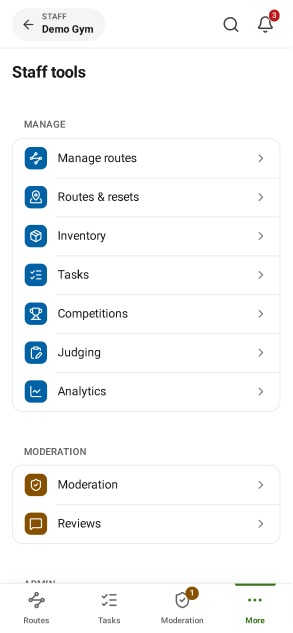
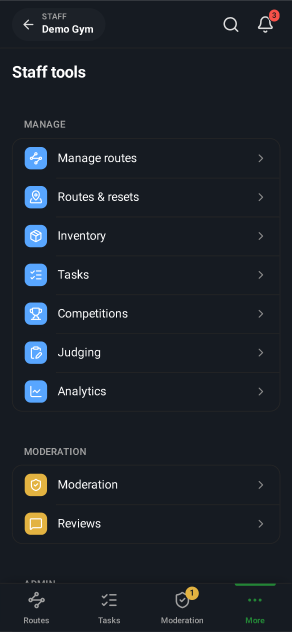
- Tap Staff tools in the menu. What you see depends on your role.
Add a route
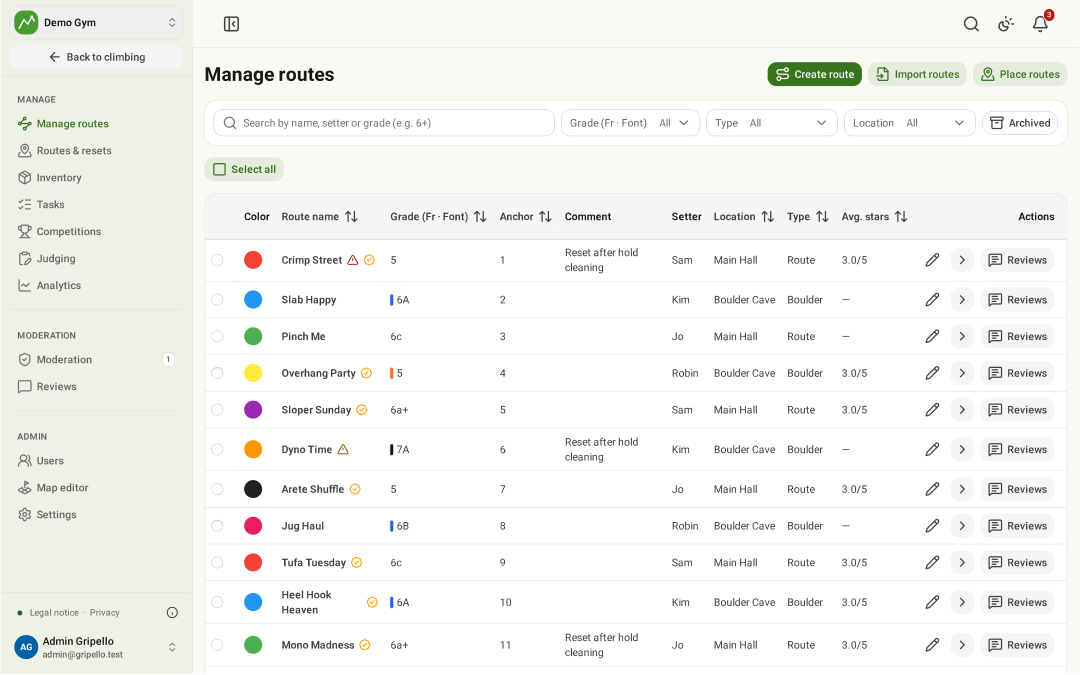
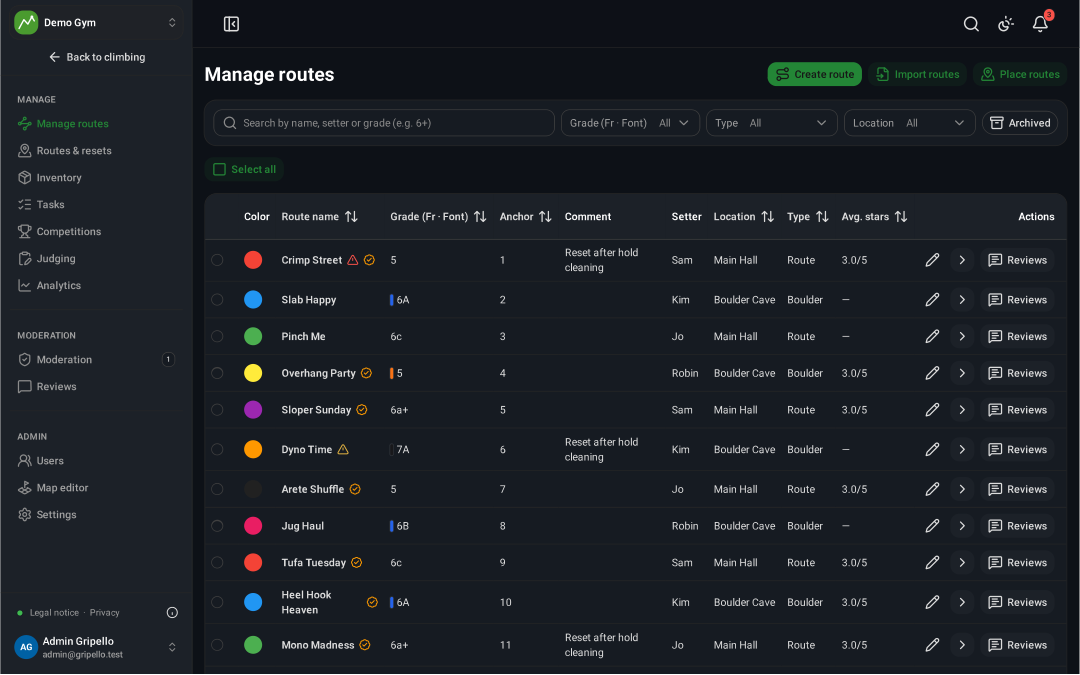
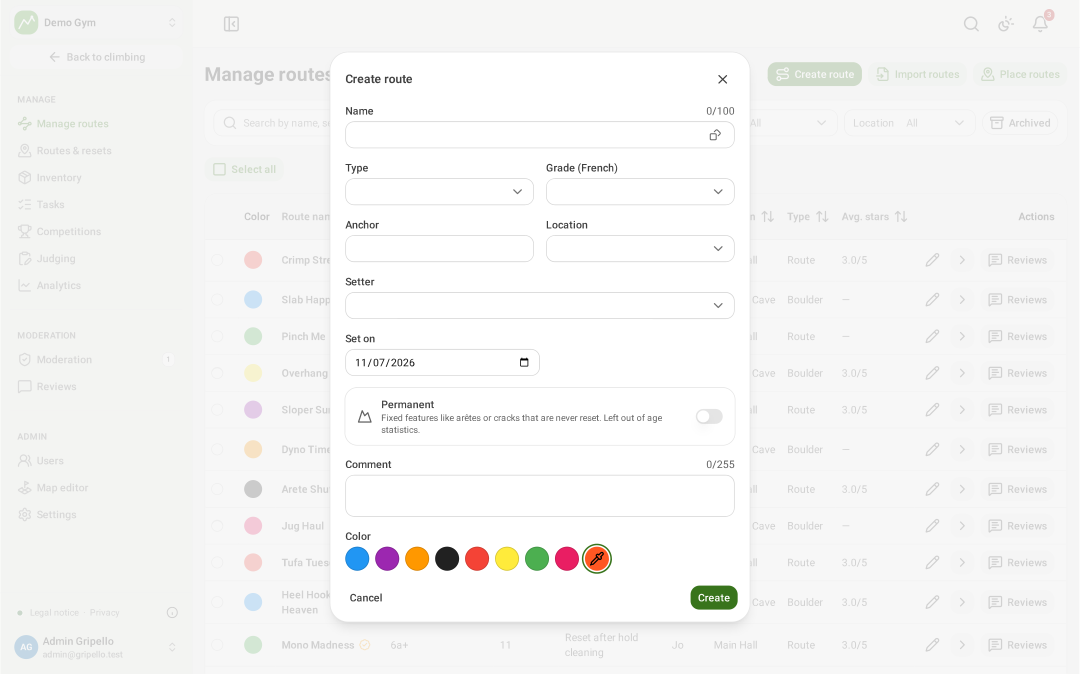
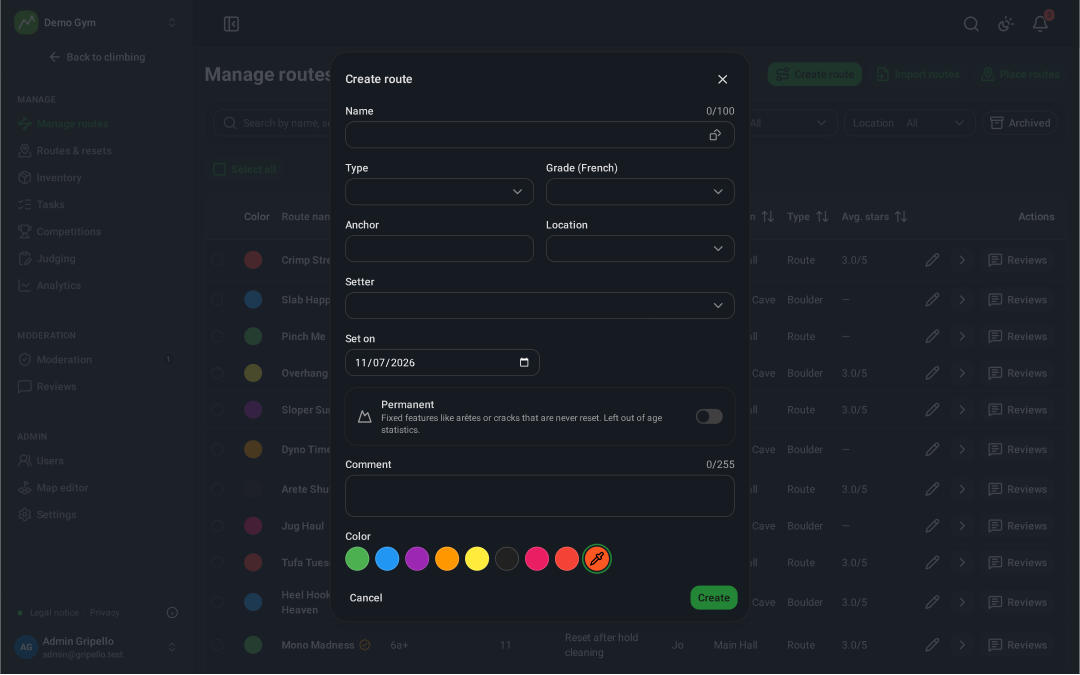
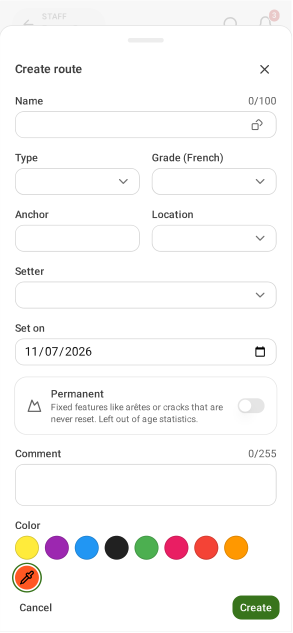
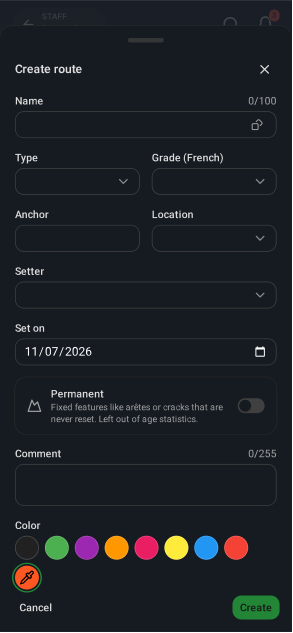
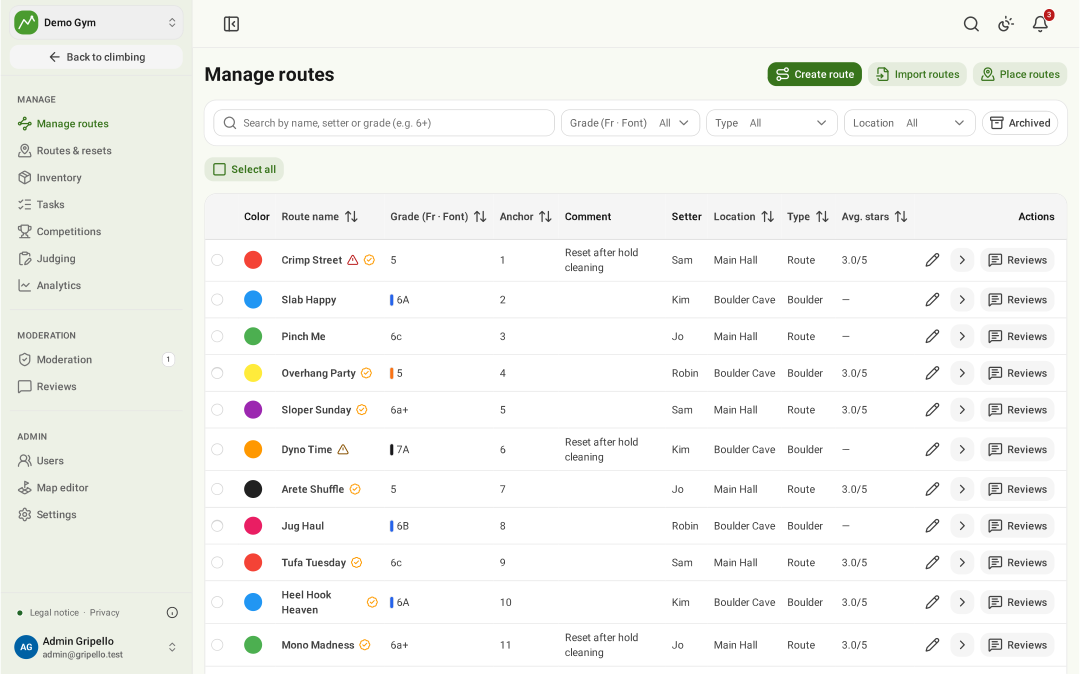
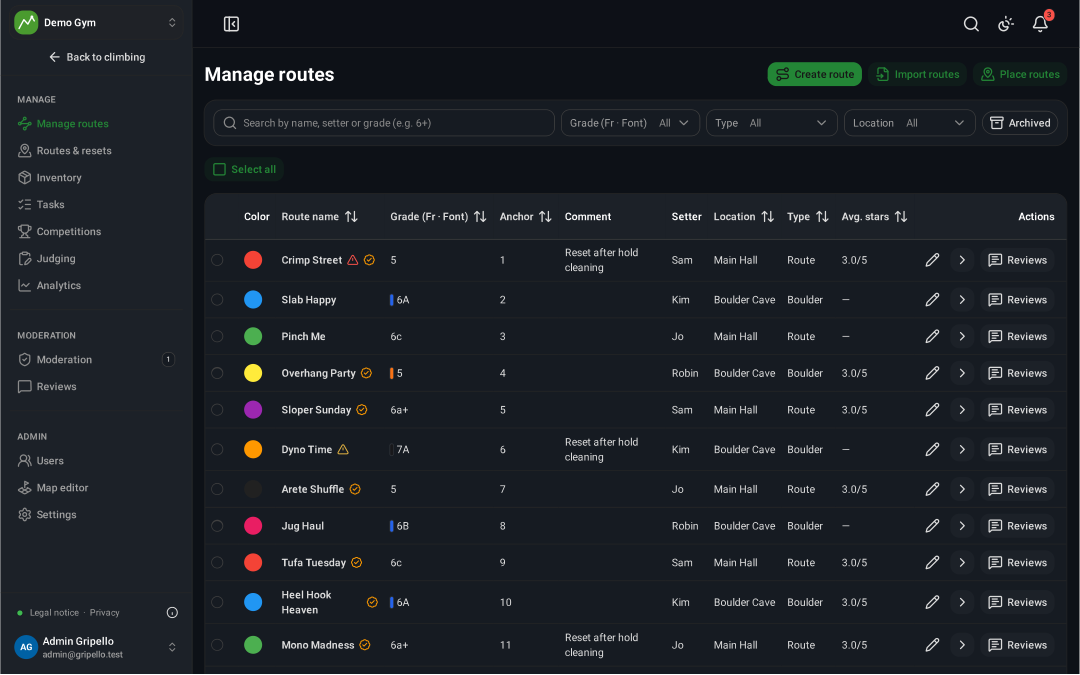
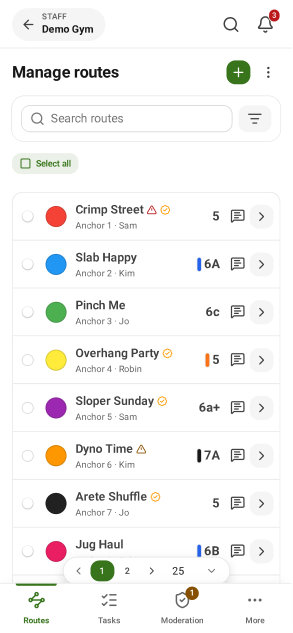
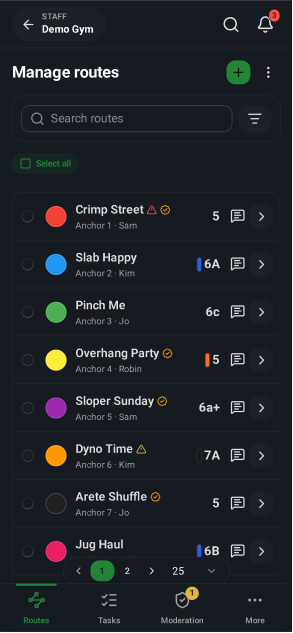
- Manage routes → Create route.
- Set name, type, grade, anchor, location, setter, date and colour, then Create.
- Put it on its wall under Routes & resets (below).
Edit or archive routes
- Tap the pencil to edit a route.
- Select routes and Archive them when they come off the wall.
- Import routes reads a spreadsheet.
Print QR tags
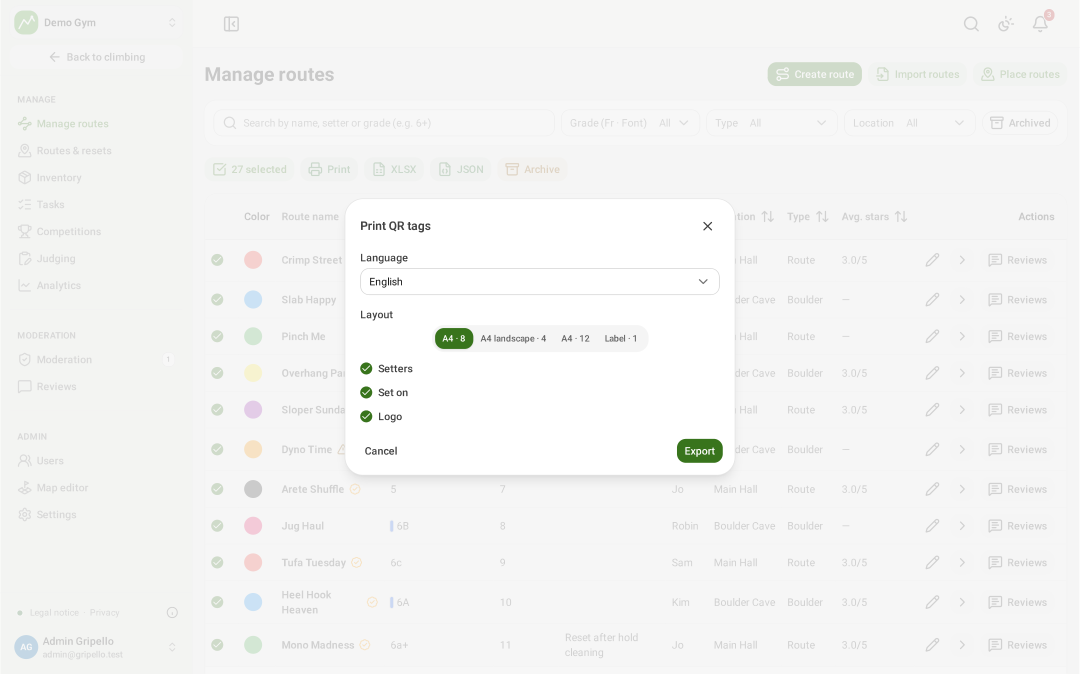
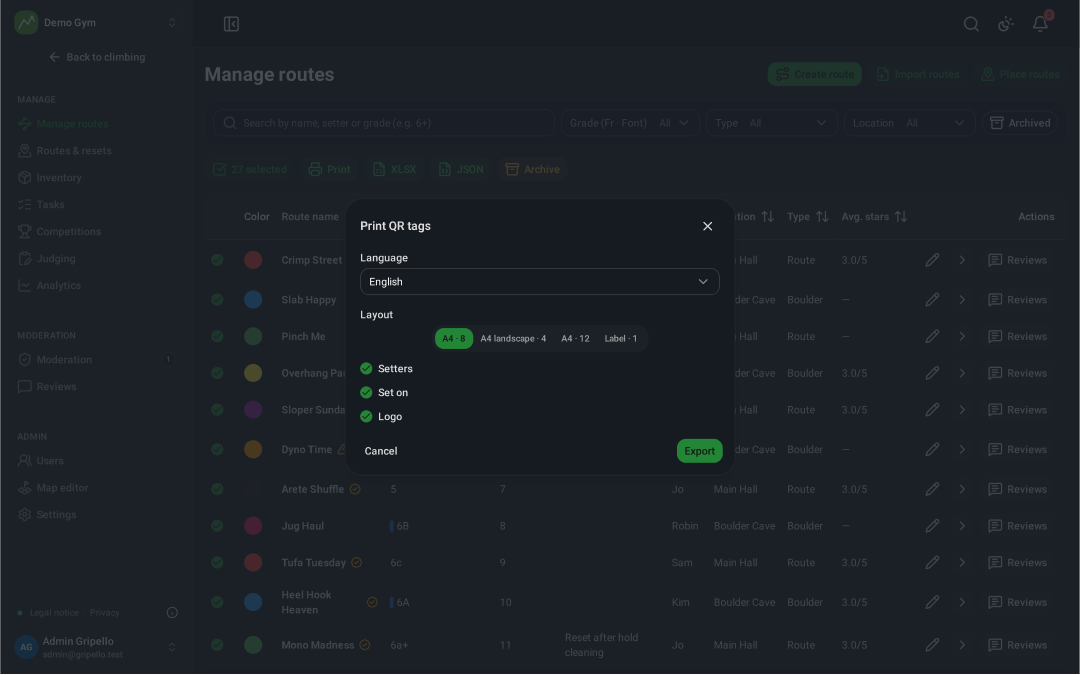
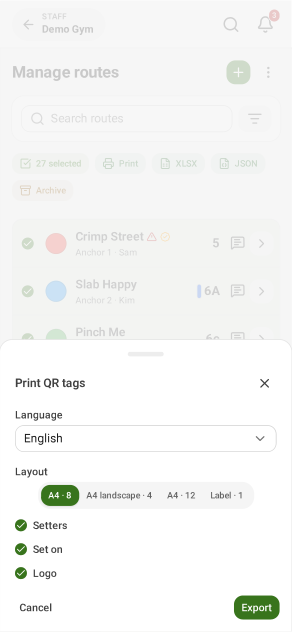
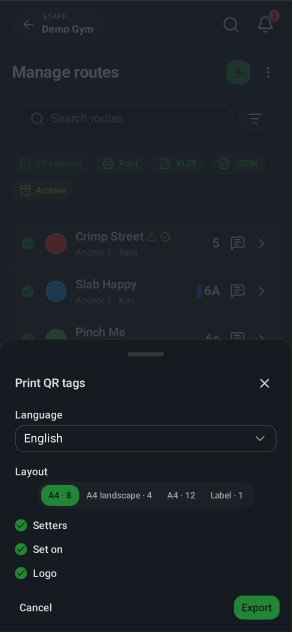
- Manage routes: select the routes, tap Print.
- Pick language, layout and what to show, then Export a PDF; every tag carries the QR code climbers scan.
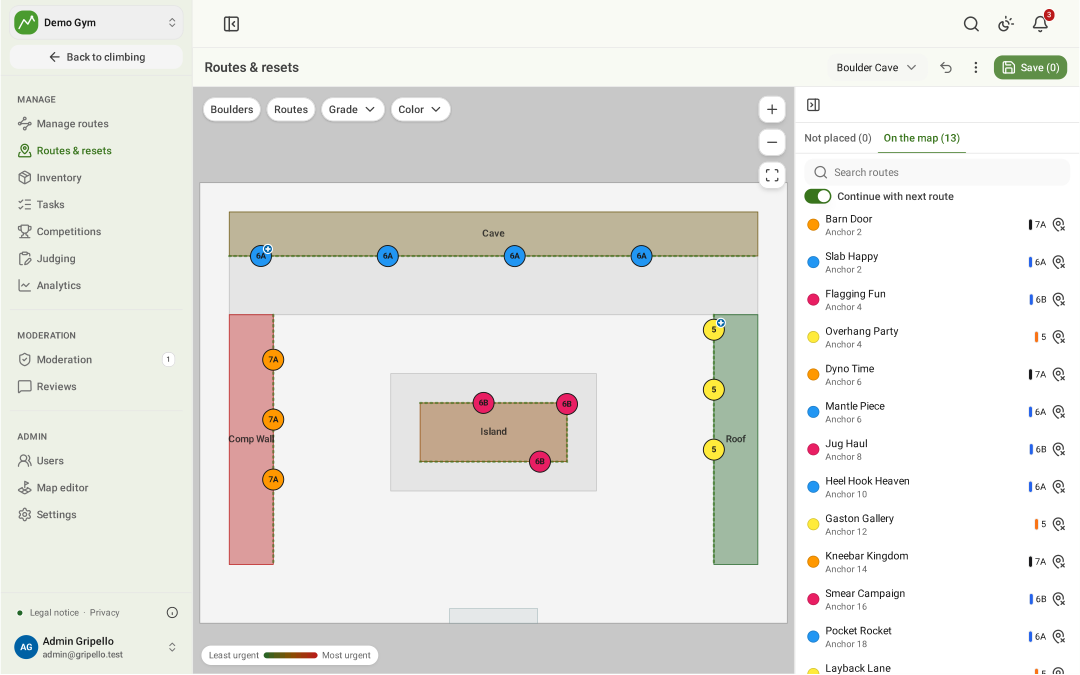
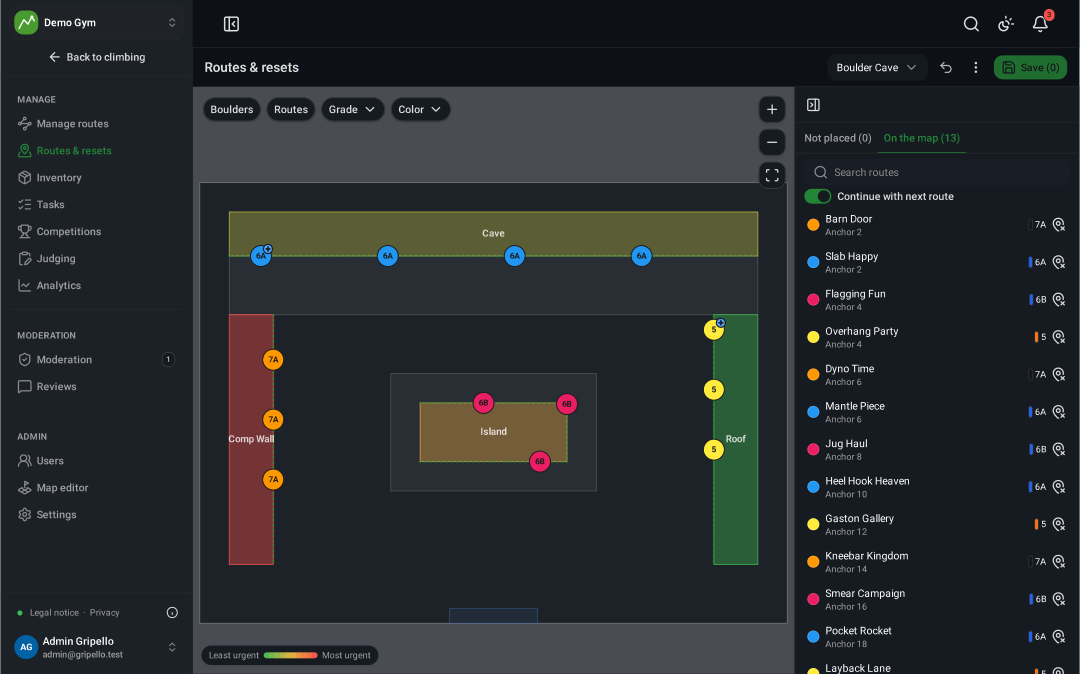
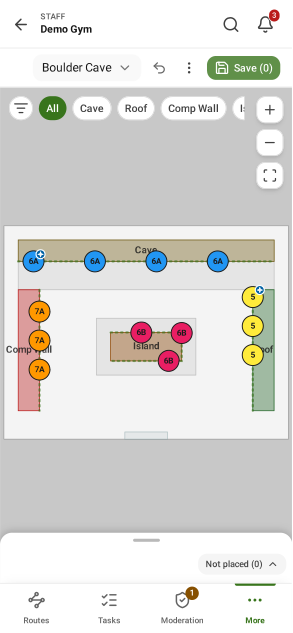
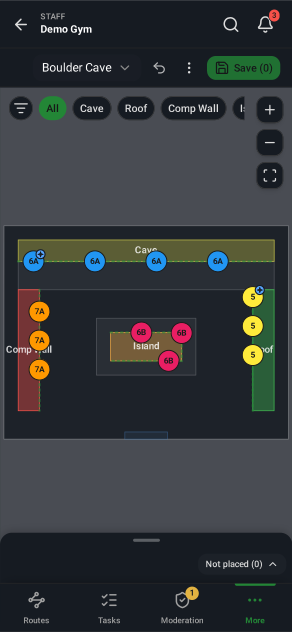
Place routes on walls
- Routes & resets: pick the hall.
- Drag routes from the list onto a wall; Save.
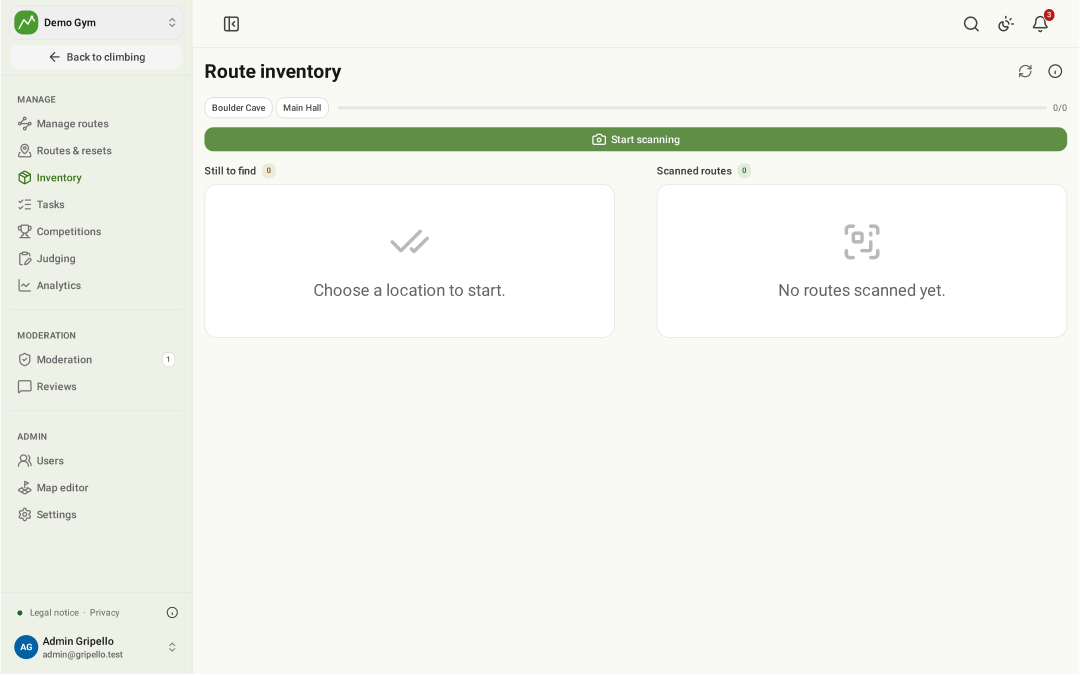
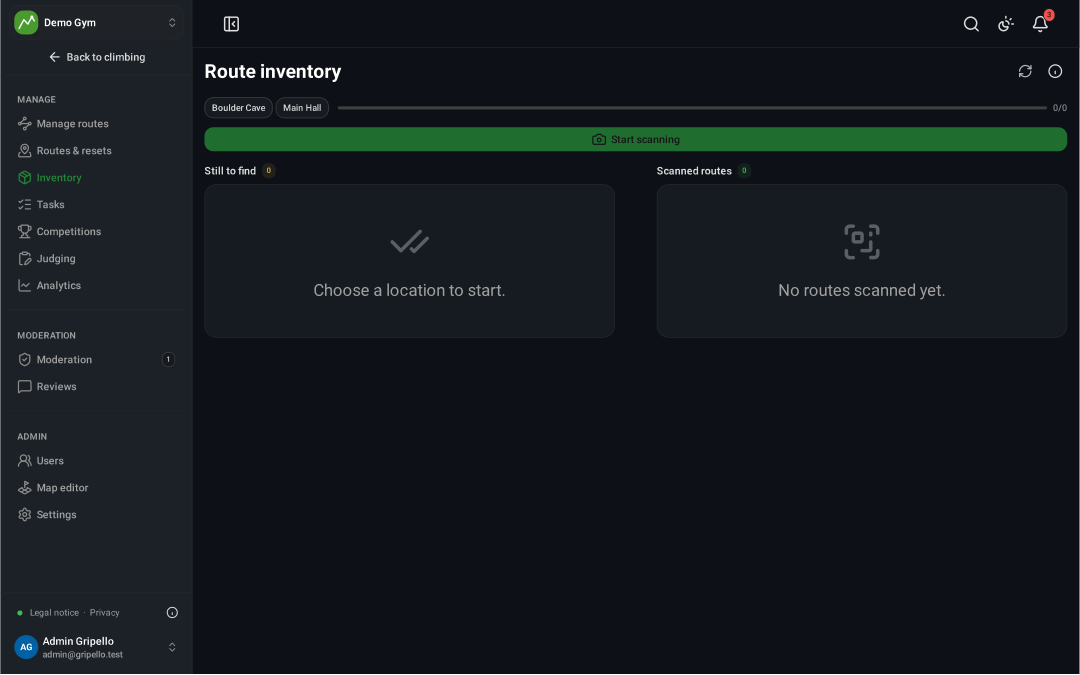
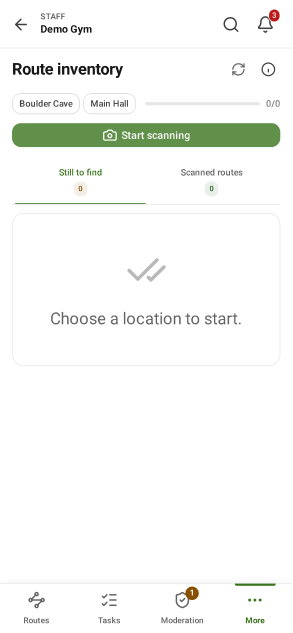
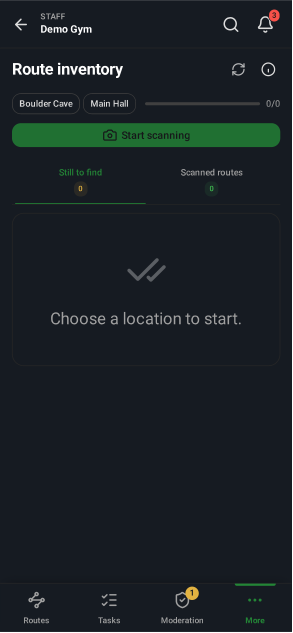
Take inventory
- Inventory: choose a location and tap Start scanning.
- Scan every route sign.
- Finish inventory archives the routes that were not found.
Fix defects
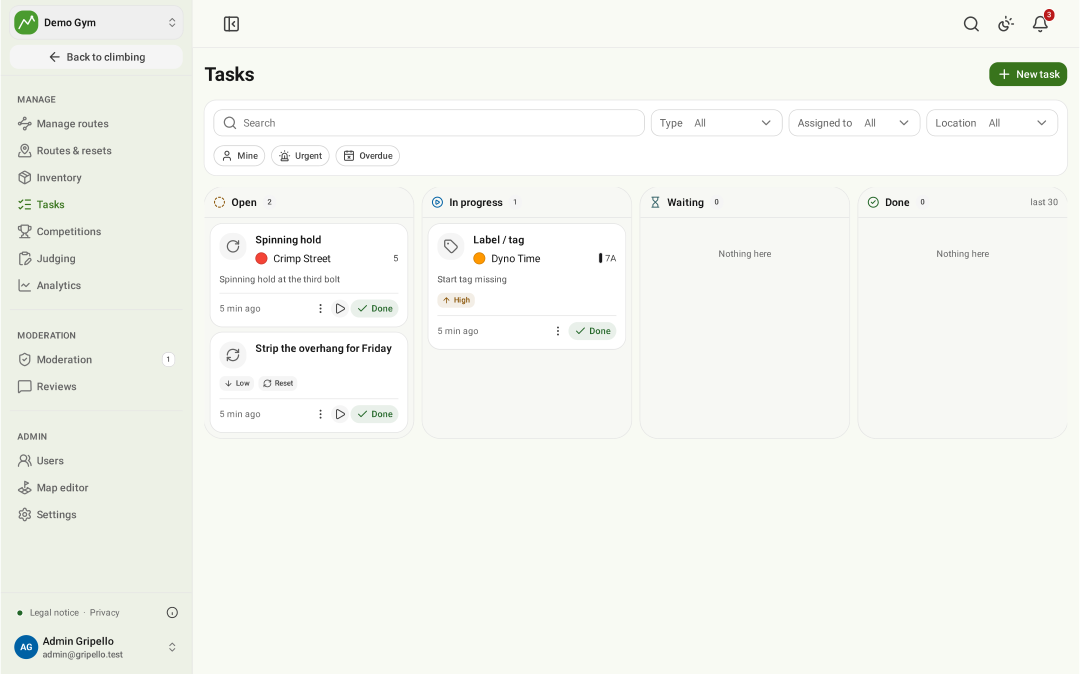
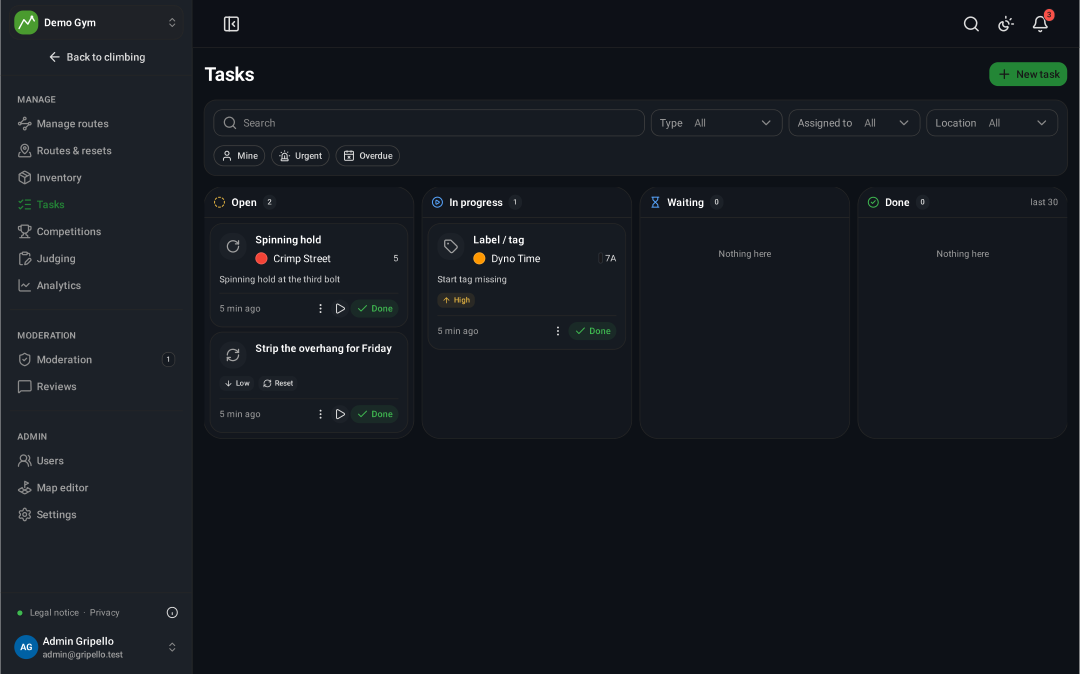
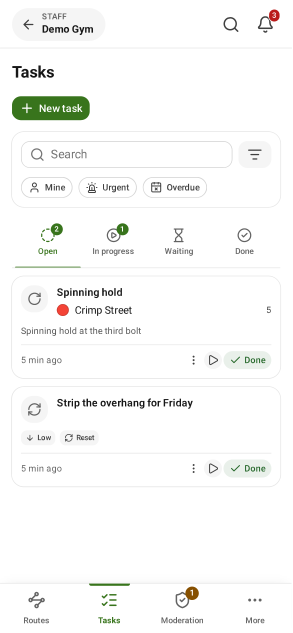
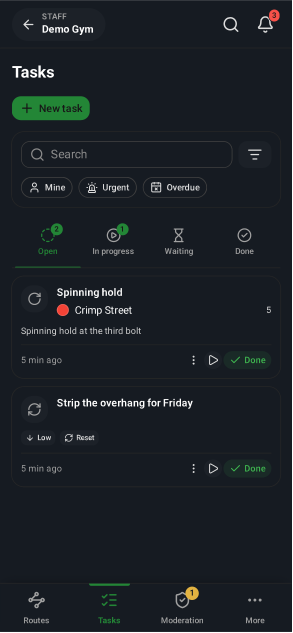
- Problems climbers report land in Tasks.
- Drag a task to In progress, Waiting or Done; the reporter is told when it is fixed.
Plan work
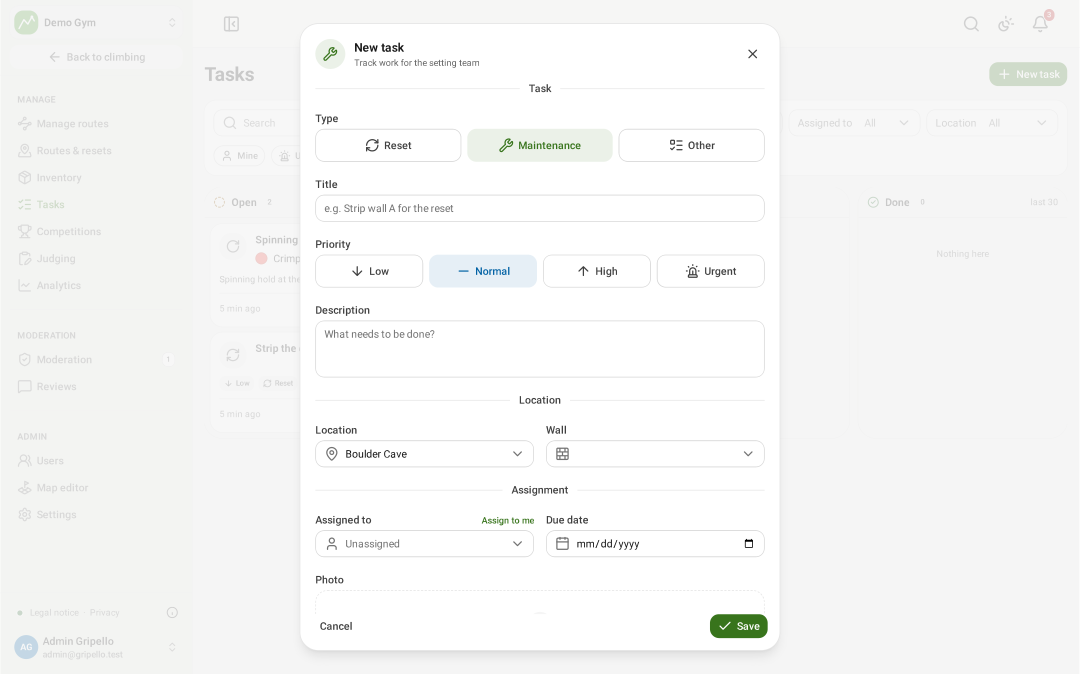
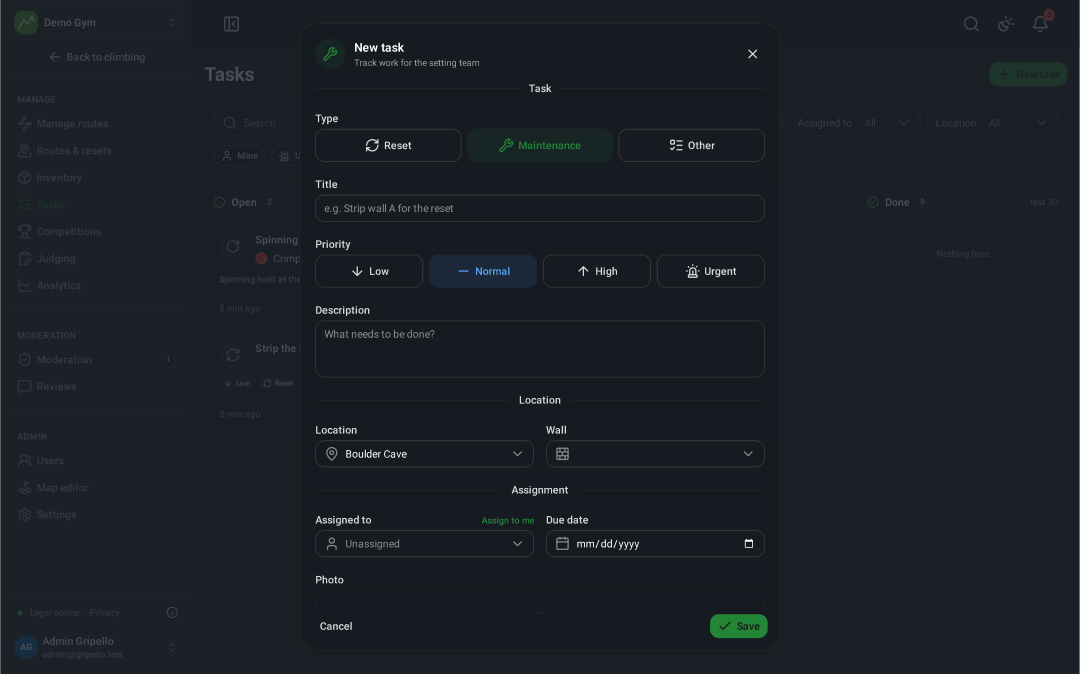
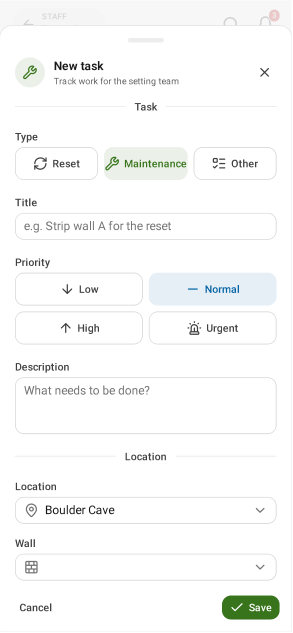
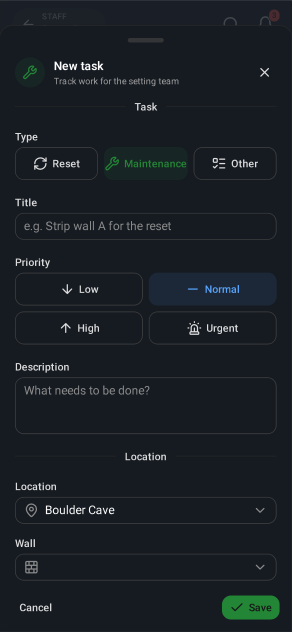
- Tasks → New task.
- Pick Reset, Maintenance or Other, give it a title and priority, the location or wall, who does it and by when.
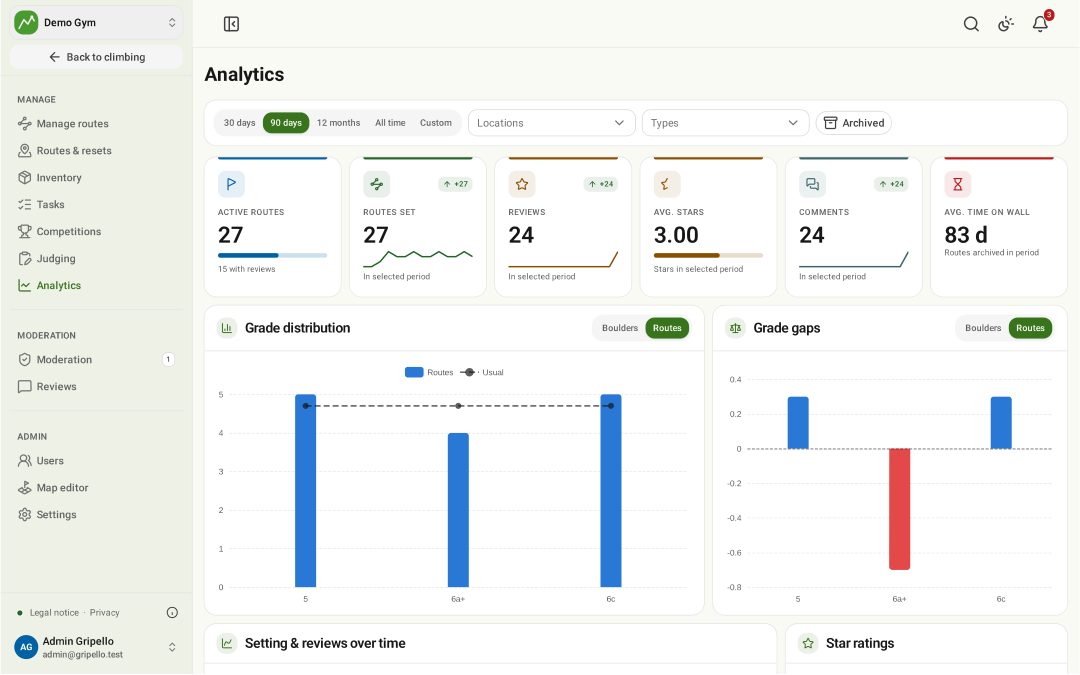
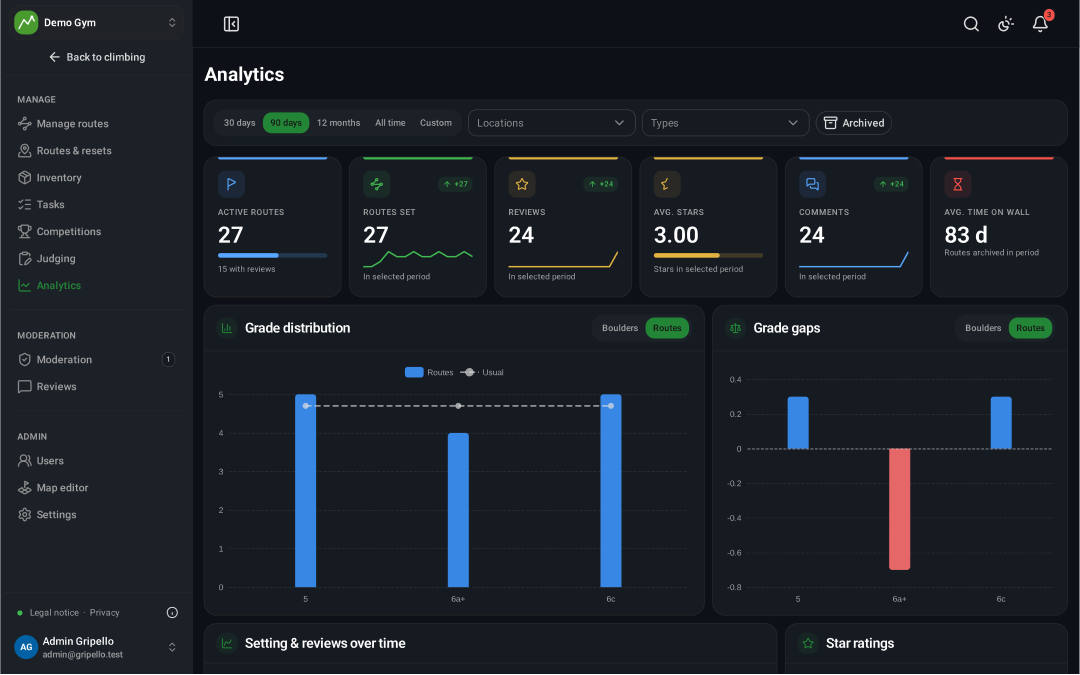
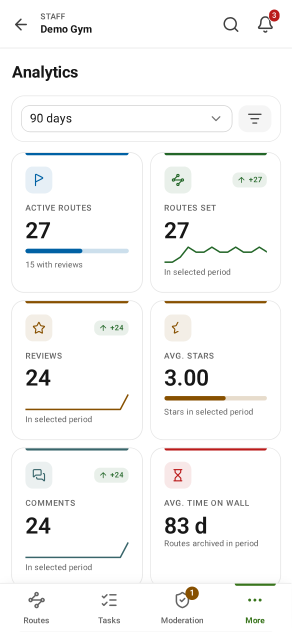
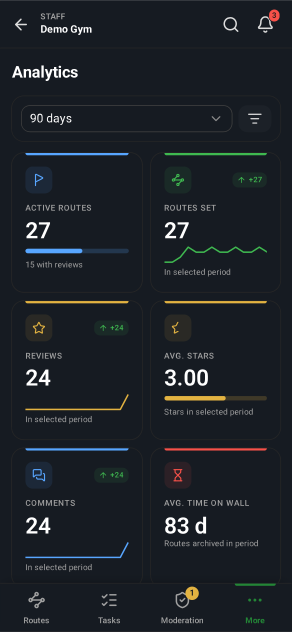
Analytics
- Routes set, reviews, stars, grade distribution and how long routes stay up.