
Guide
Climbing
Find routes, log ascents, follow friends.
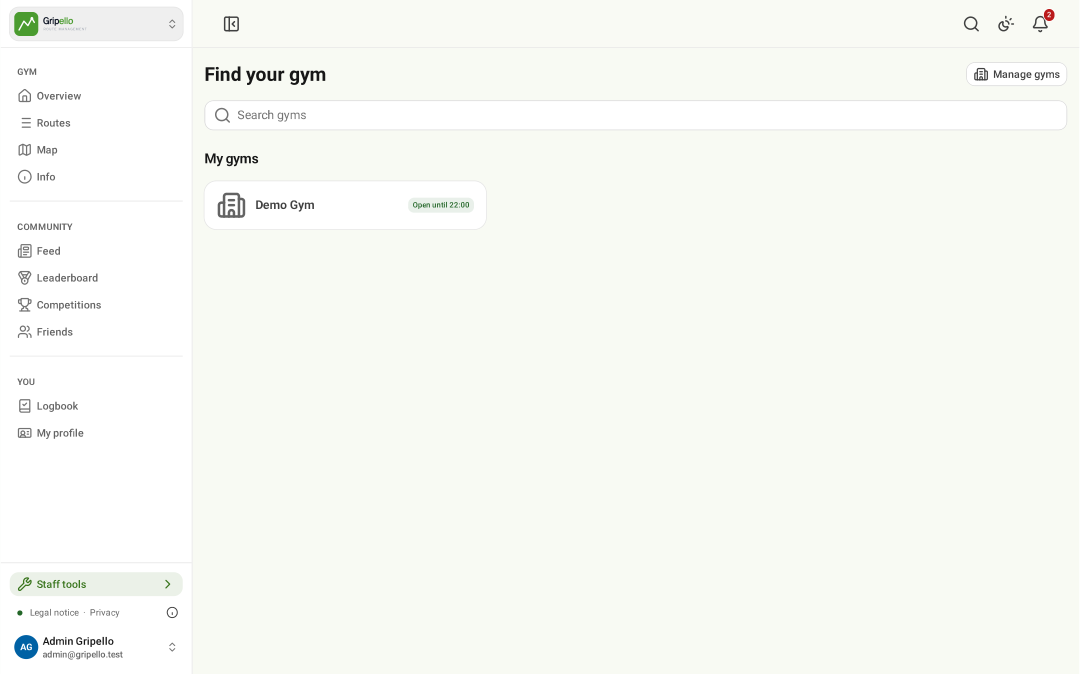
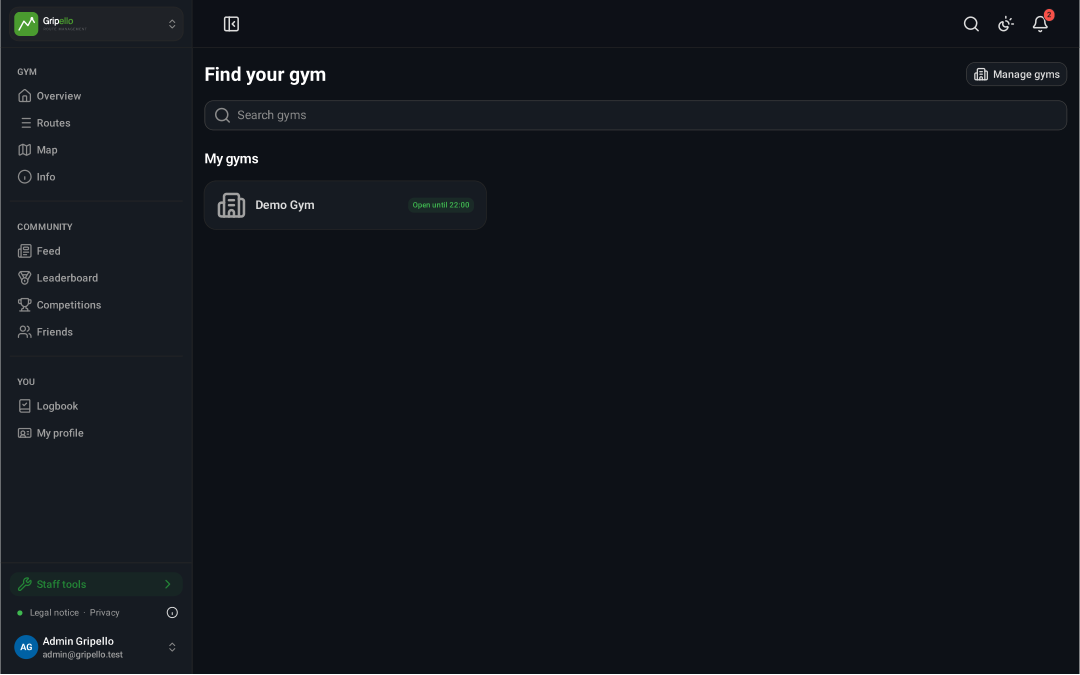
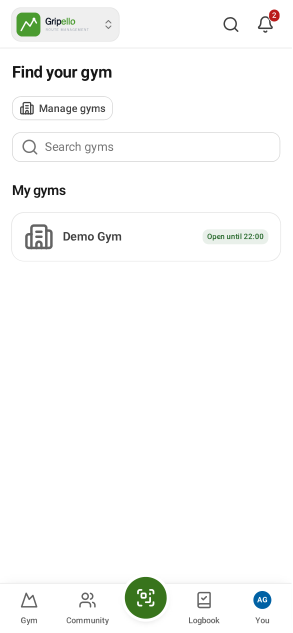
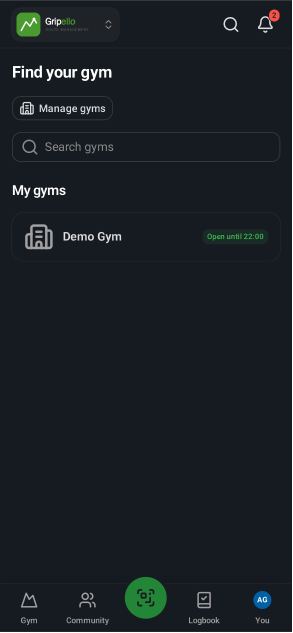
Find your gym
- Open Gripello and search for your gym.
- Open it; Gripello remembers it for next time.
See what is new
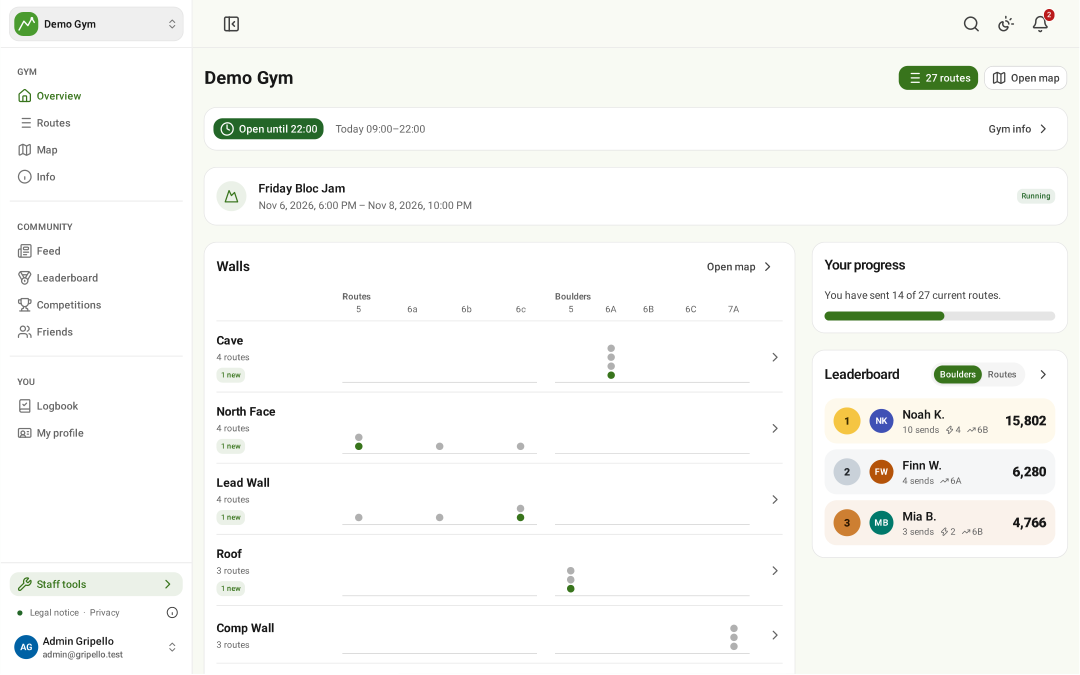
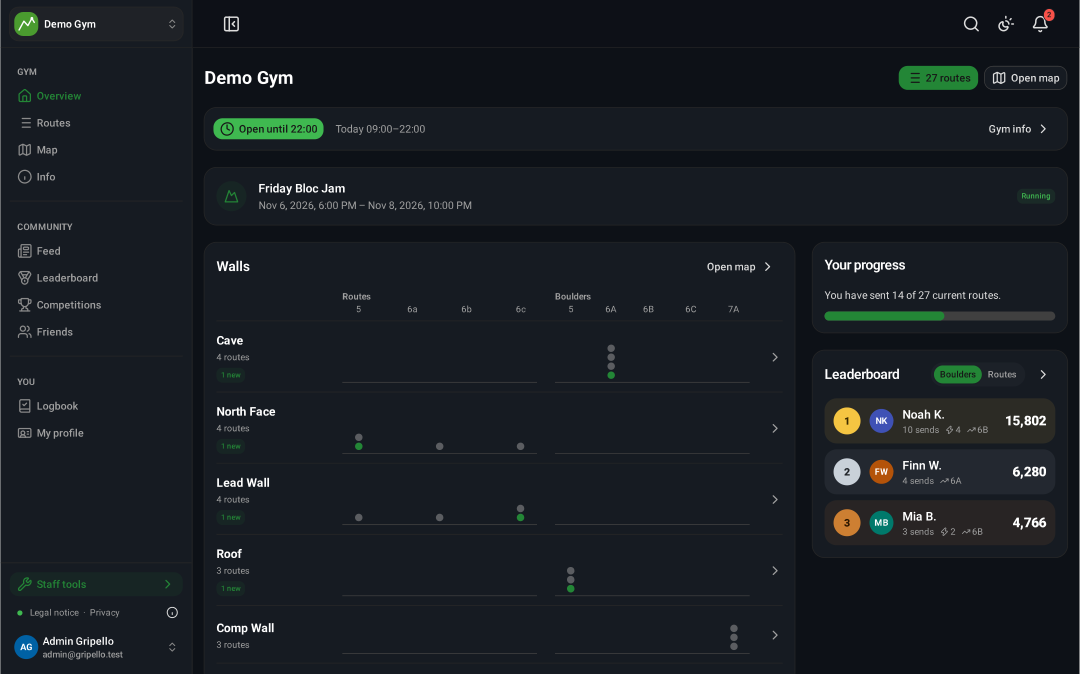
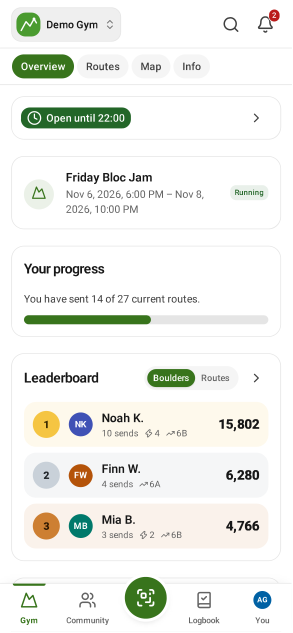
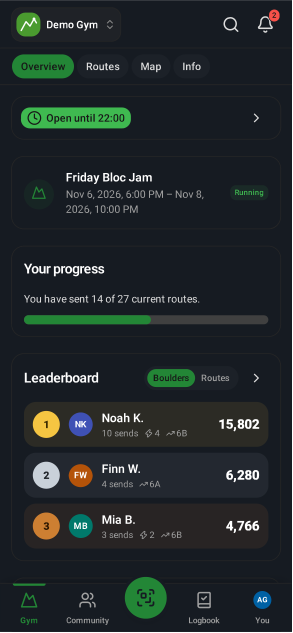
- The gym overview shows new routes per wall, your progress and running competitions.
Find a route
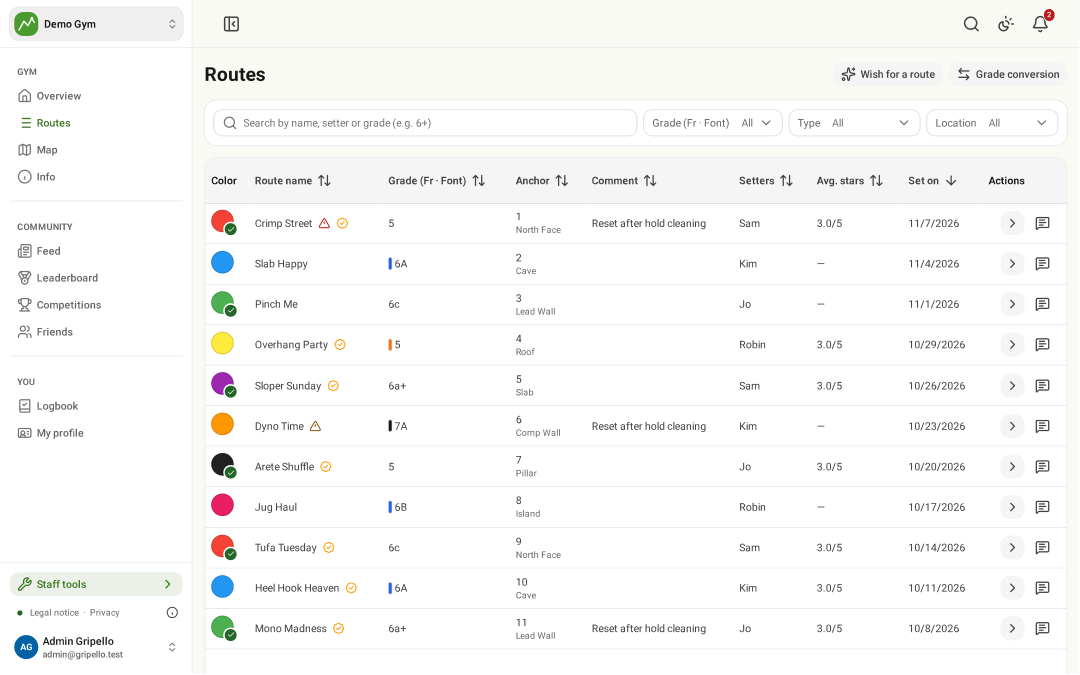
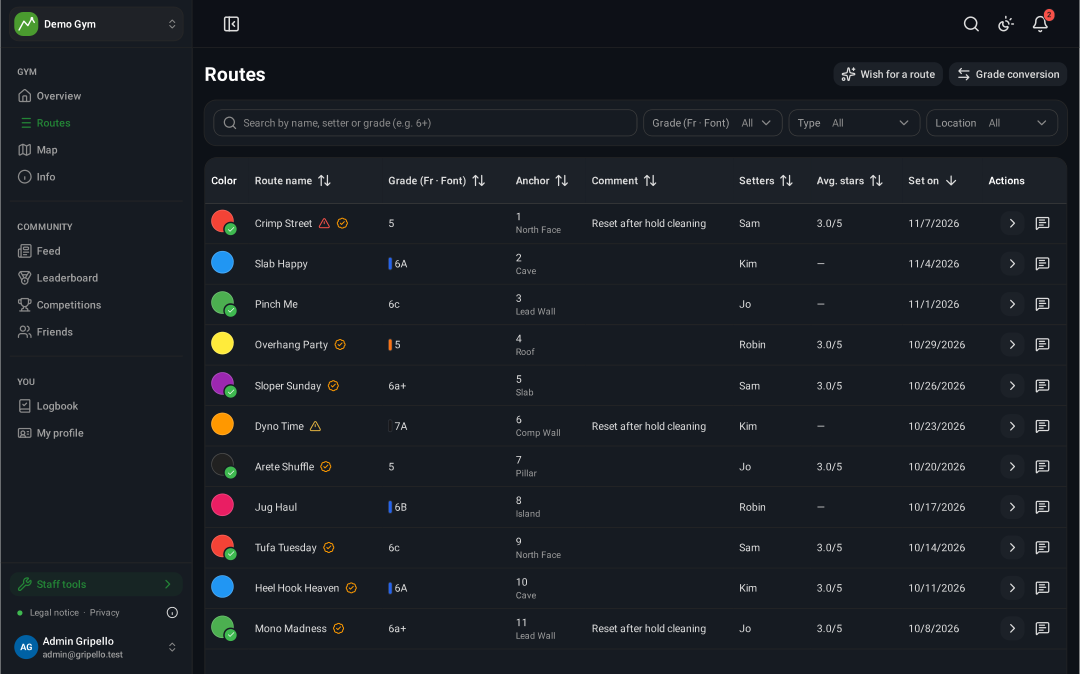
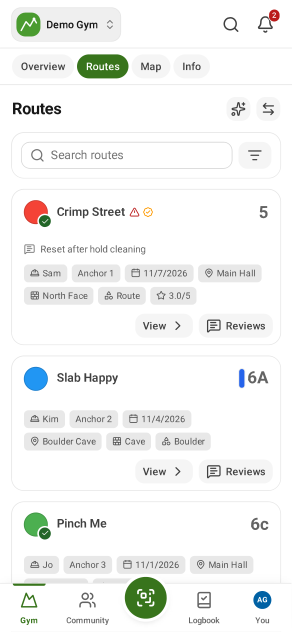
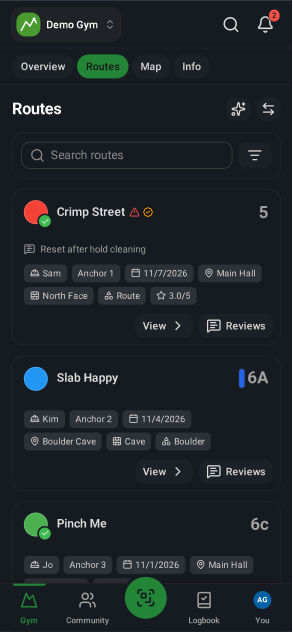
- Open Routes.
- Filter by type, grade, colour, location or wall, or search by name, setter or grade.
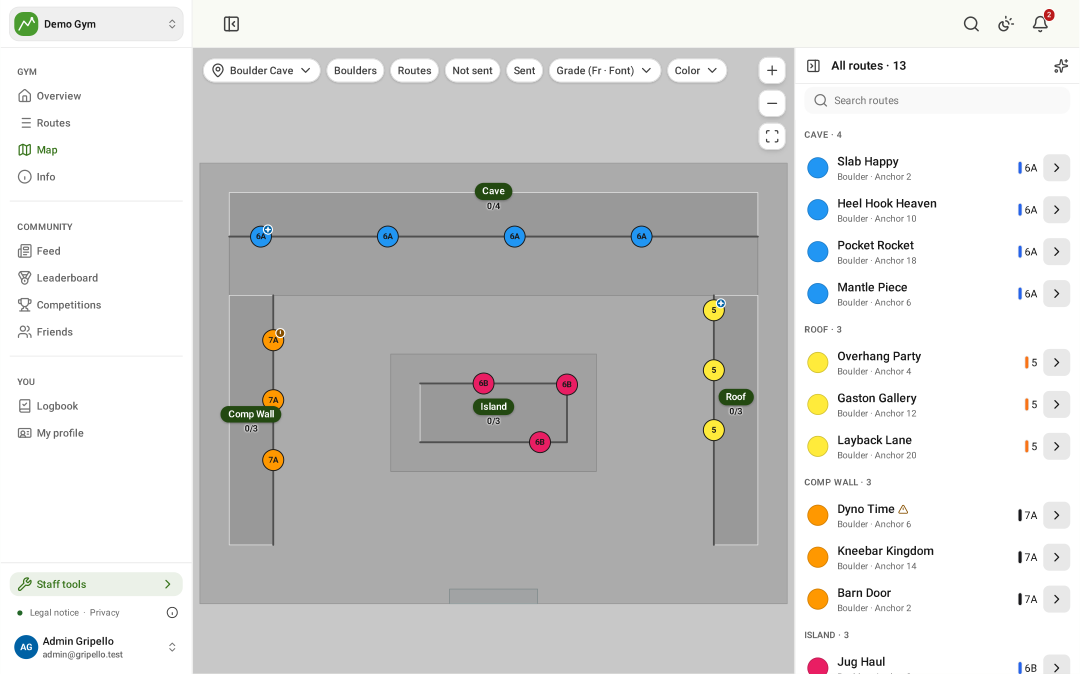
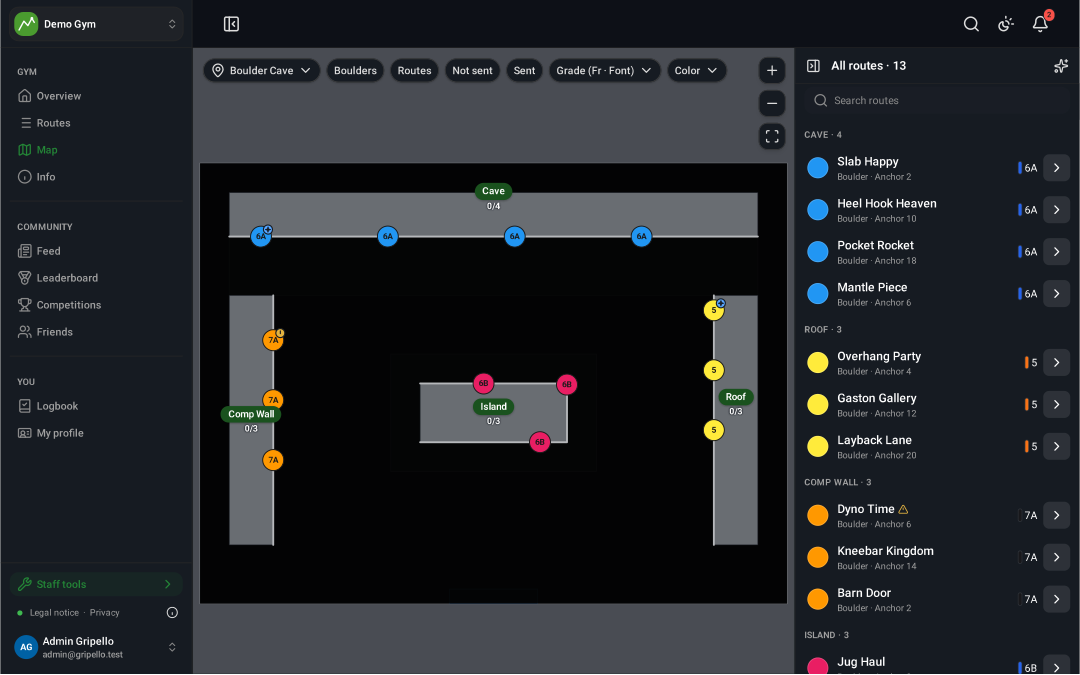
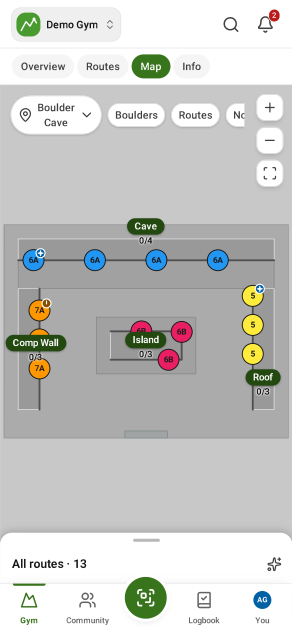
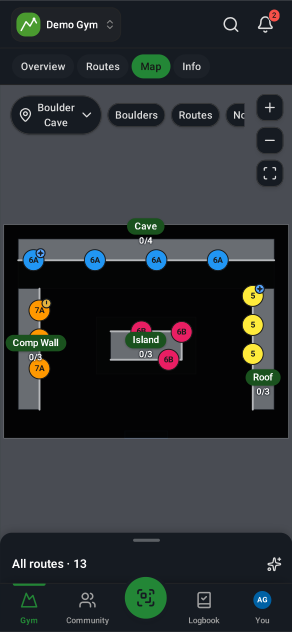
Find routes on the map
- Open Map and pick a hall.
- Tap a wall to list its routes.
Scan a route sign
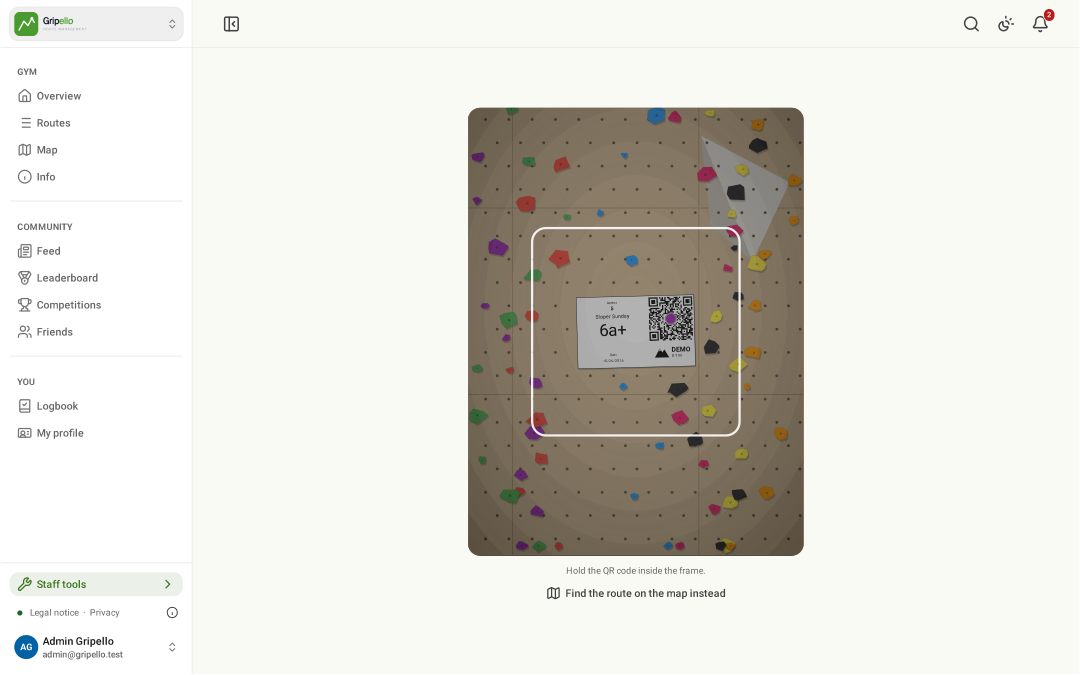
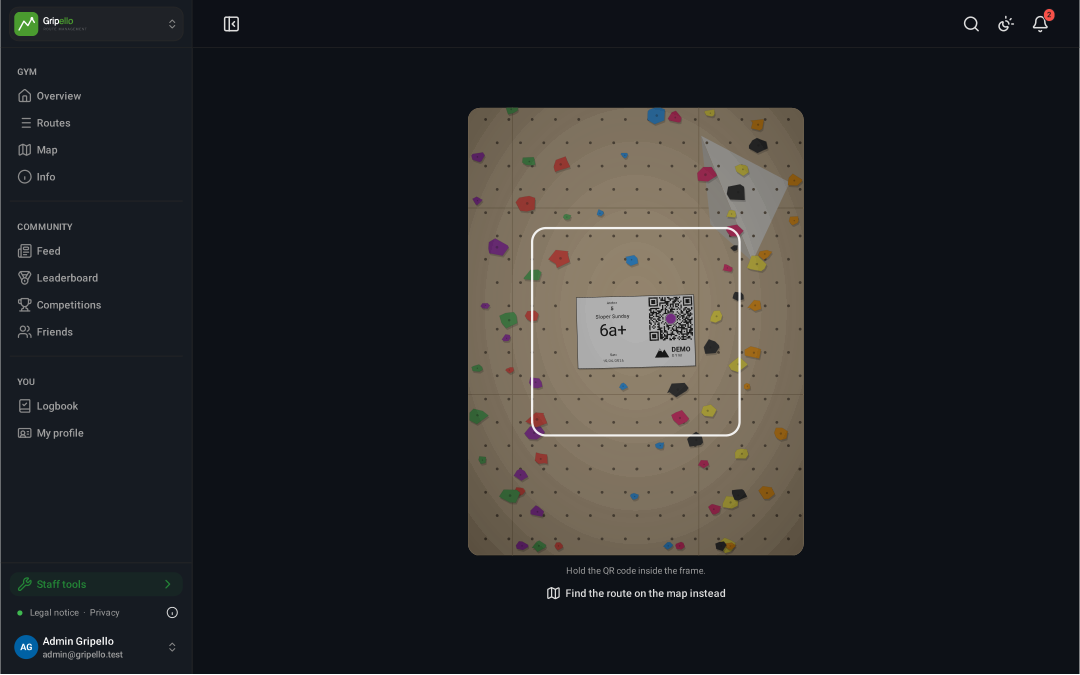
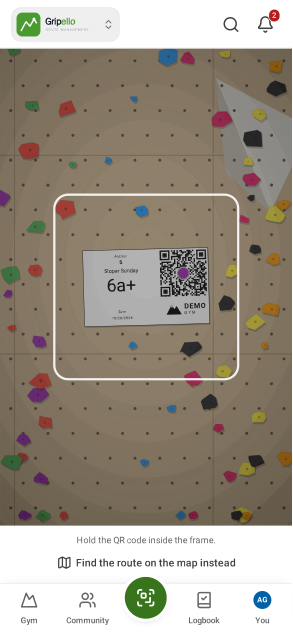
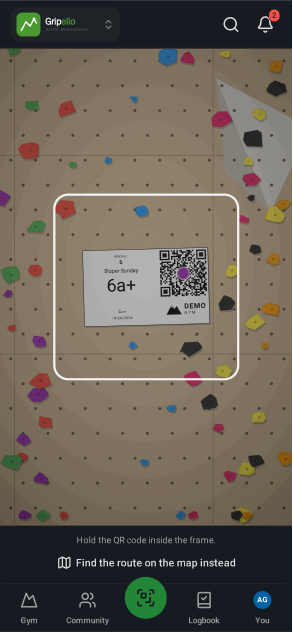
- Tap the scan button or open Scan.
- Point the camera at the QR code on the route sign; the route opens.
Log an ascent
- Open the route and tap Log ascent.
- Pick Flash, Top or Attempt, the number of attempts and the date; add a private note if you like.
- Save; the ascent lands in your logbook.


Rate and review a route
- Open the route and tap Write a review.
- Give stars, pick the grade it felt like, add a comment, Submit.


Report a problem with a route
- Open the route, tap ⋯ and Report a problem.
- Pick what is wrong (loose hold, missing tag …) and add details or a photo.
- The setters get it as a task.


Keep a logbook
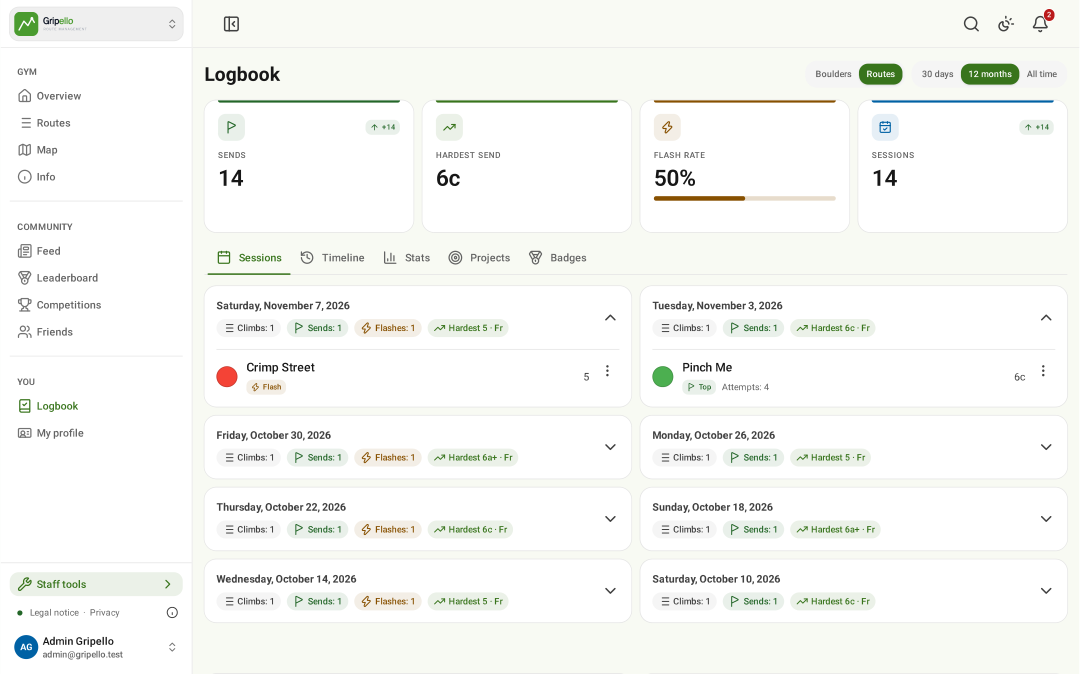
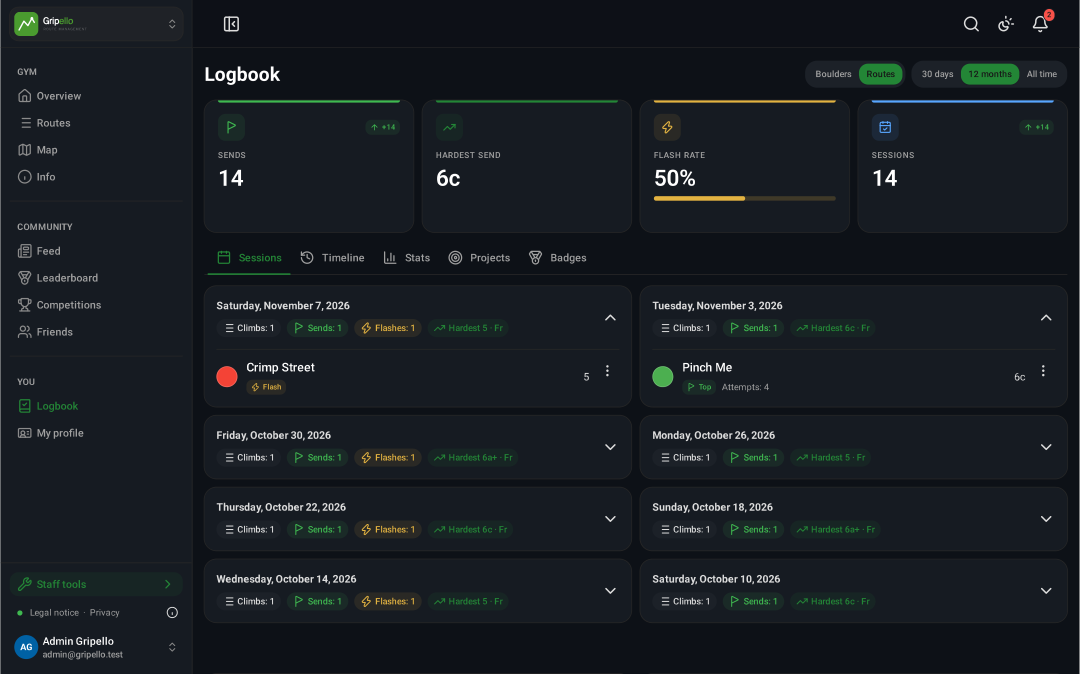
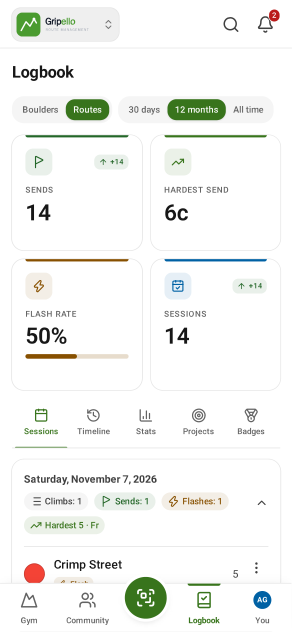
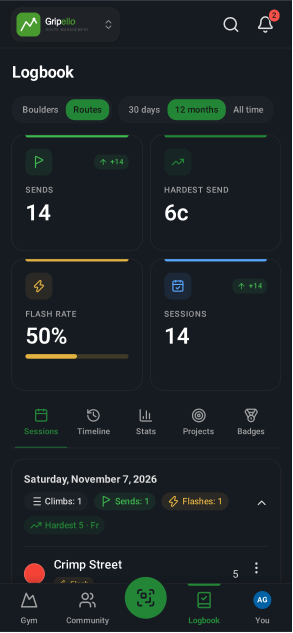
- Open Logbook: sessions, timeline, stats, projects and badges.
- Switch between boulders and routes and the time range at the top.
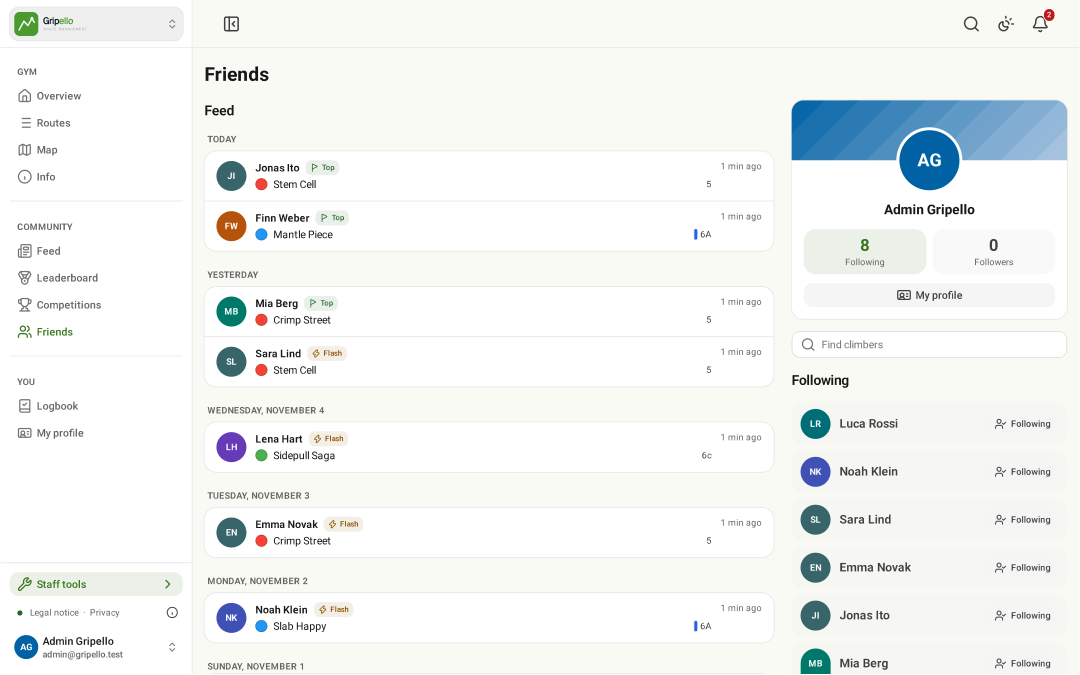
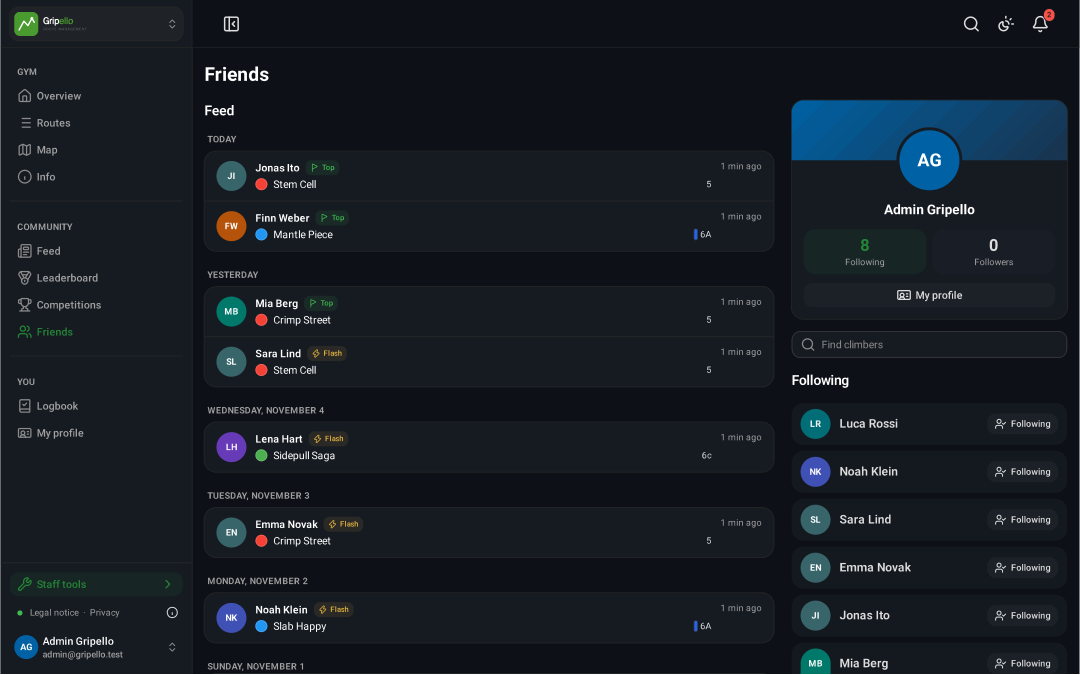
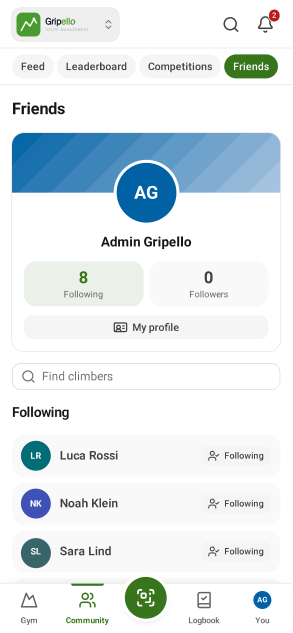
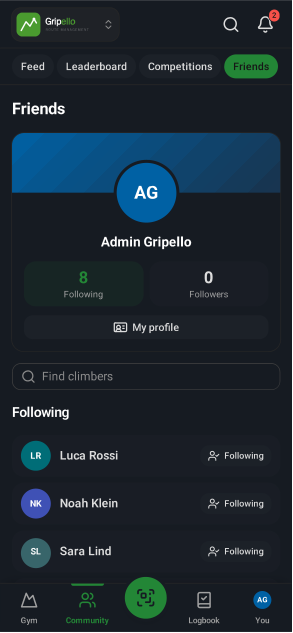
Follow friends
- Open Friends and search for a climber.
- Tap Follow; climbers who approve followers see a request first.
Follow the feed
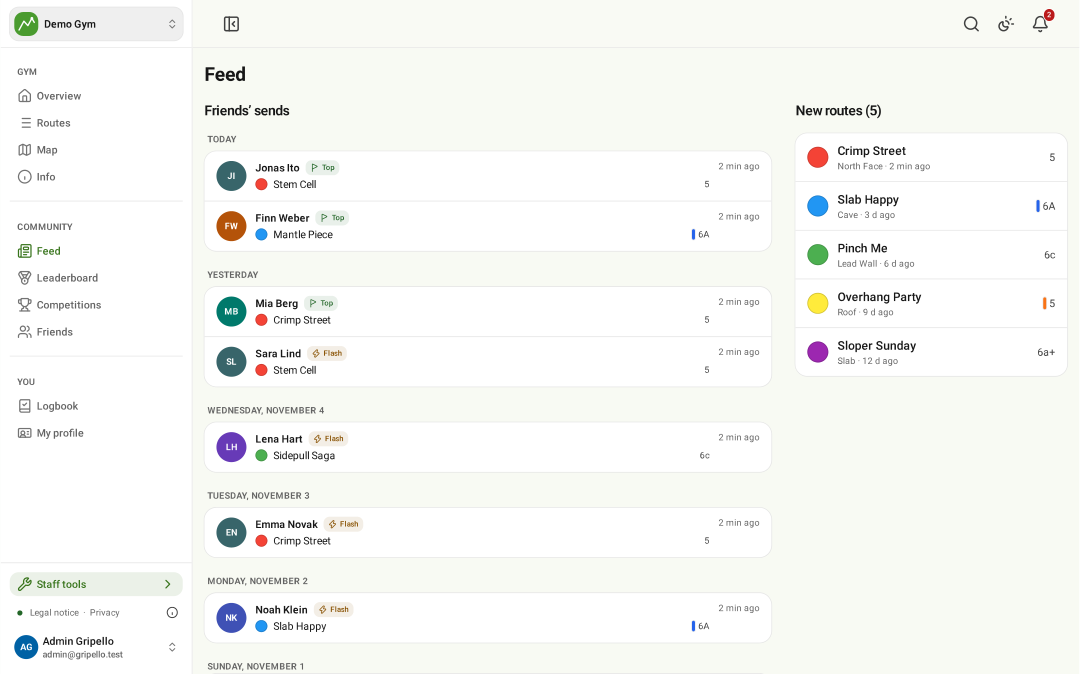
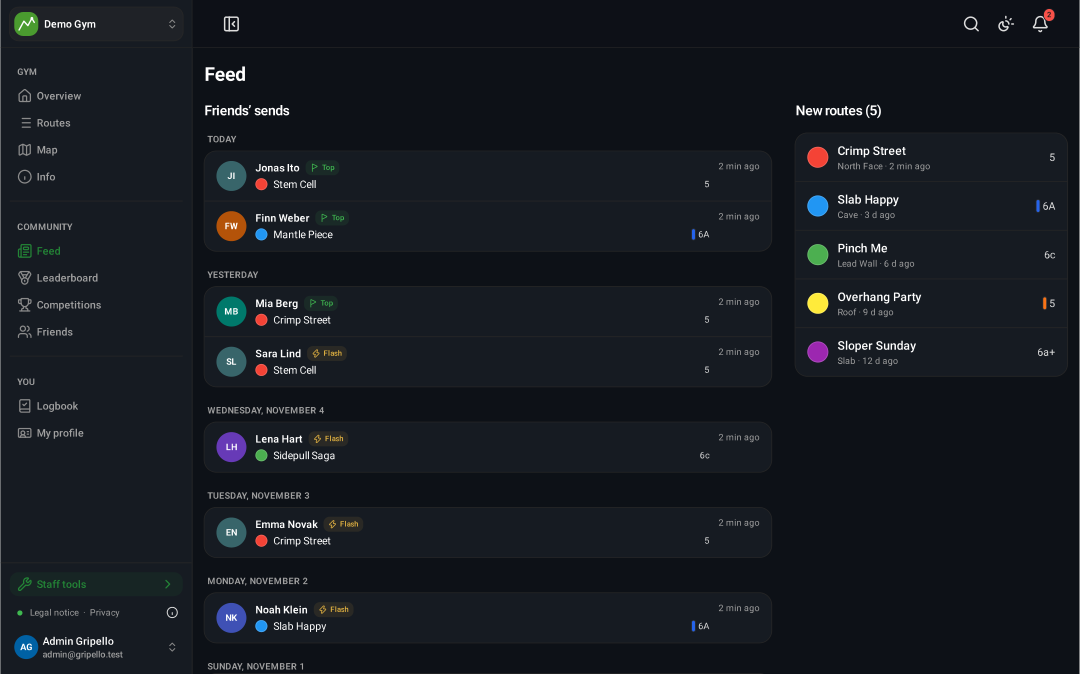
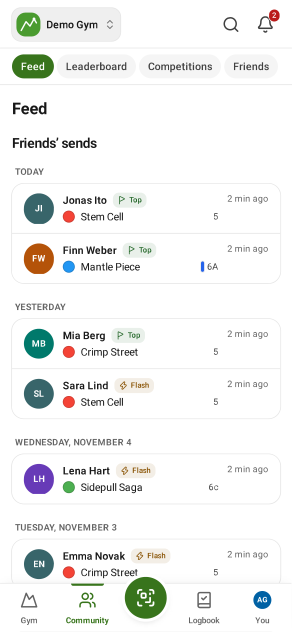
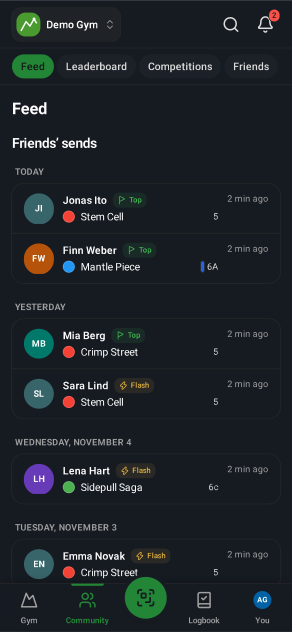
- Open Feed: sends of the people you follow and new routes on walls you follow.
Climber profiles
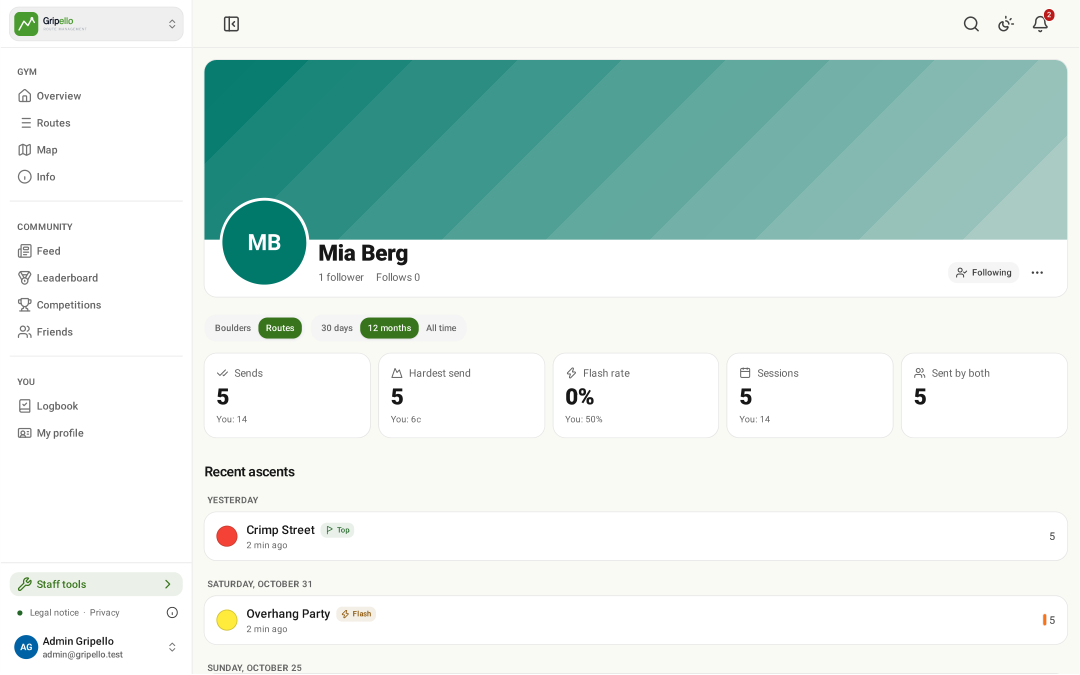
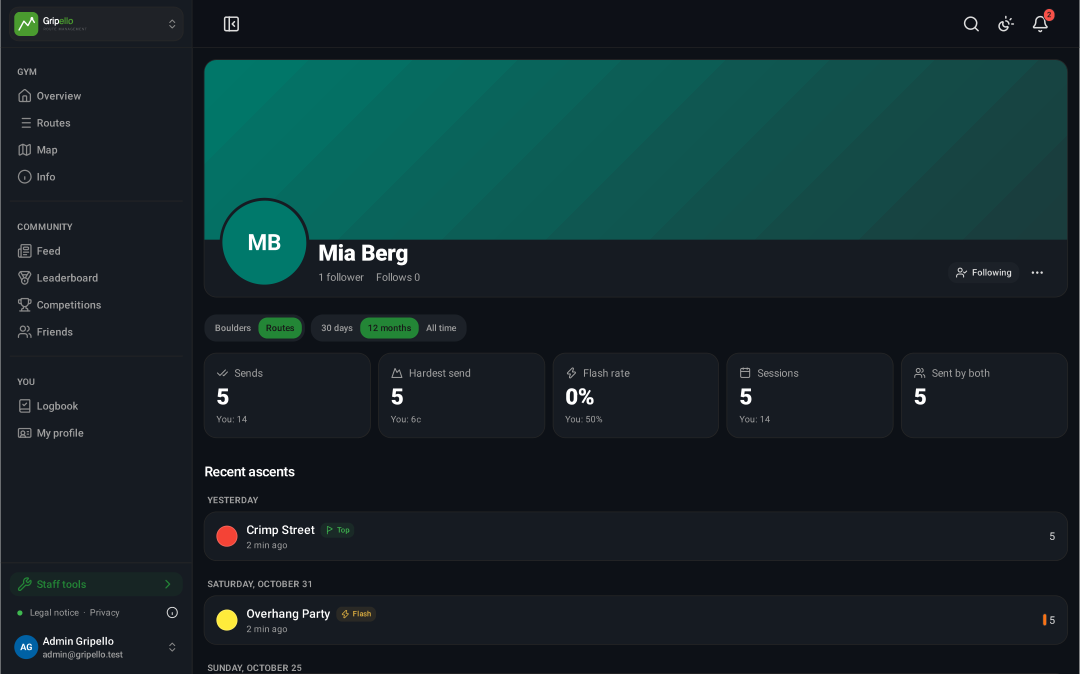
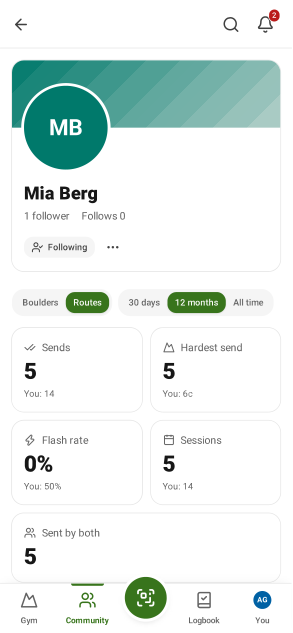
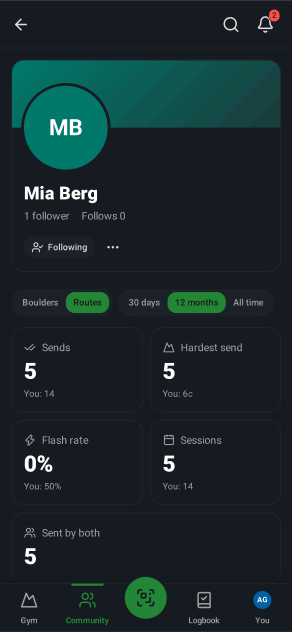
- Tap a climber anywhere to see their sends, stats and achievements.
Leaderboard
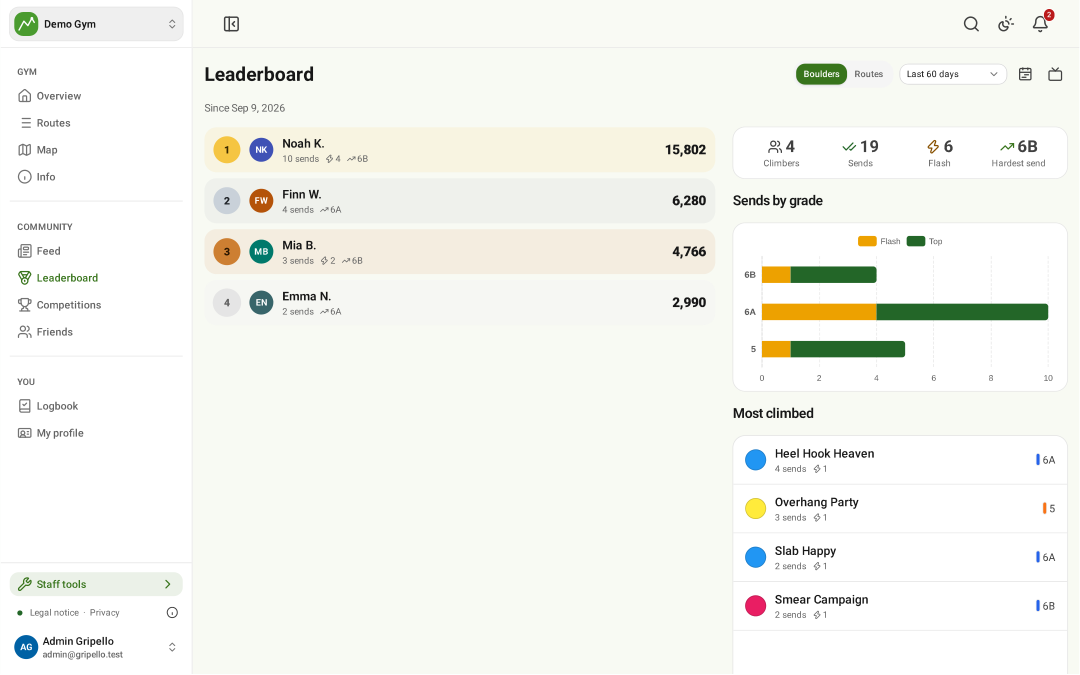
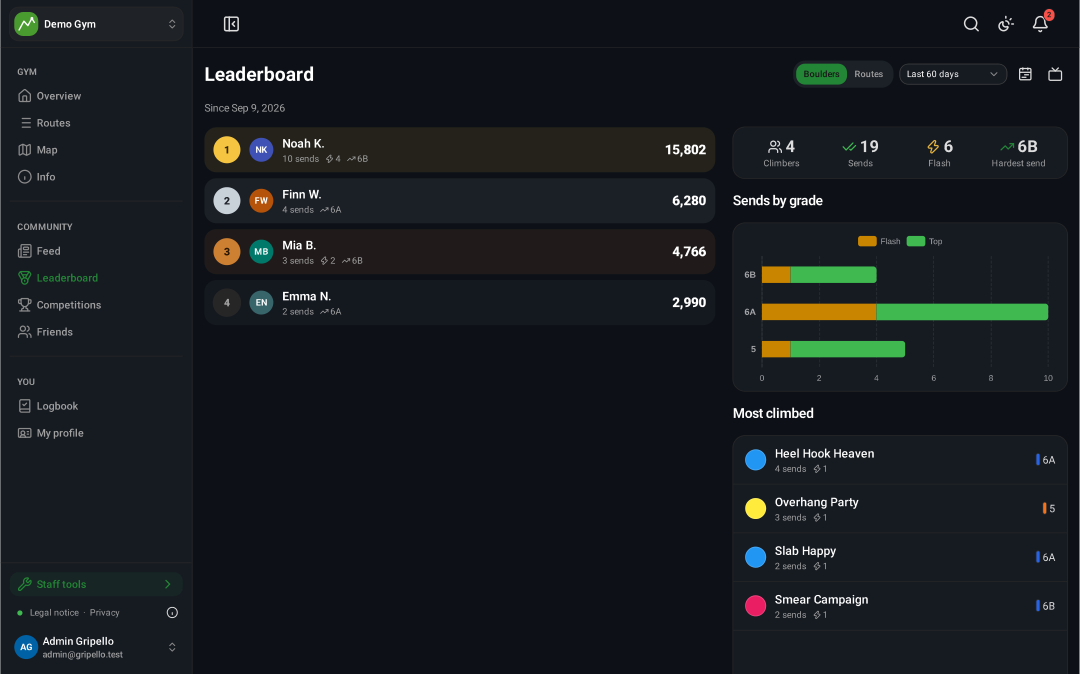
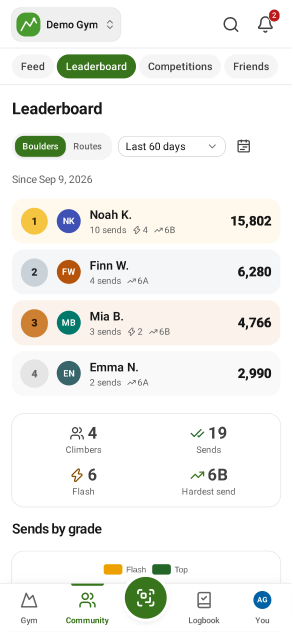
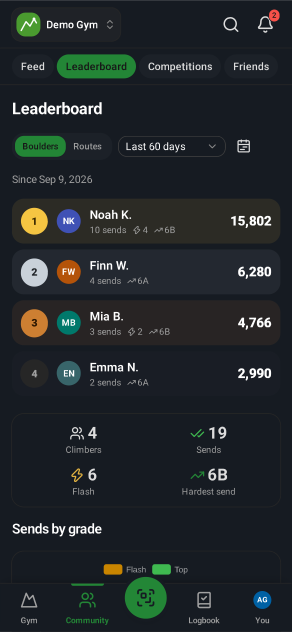
- Open Leaderboard for the gym ranking; switch boulders/routes and the period.
- Hide yourself in Settings → Privacy.
Opening hours and contact
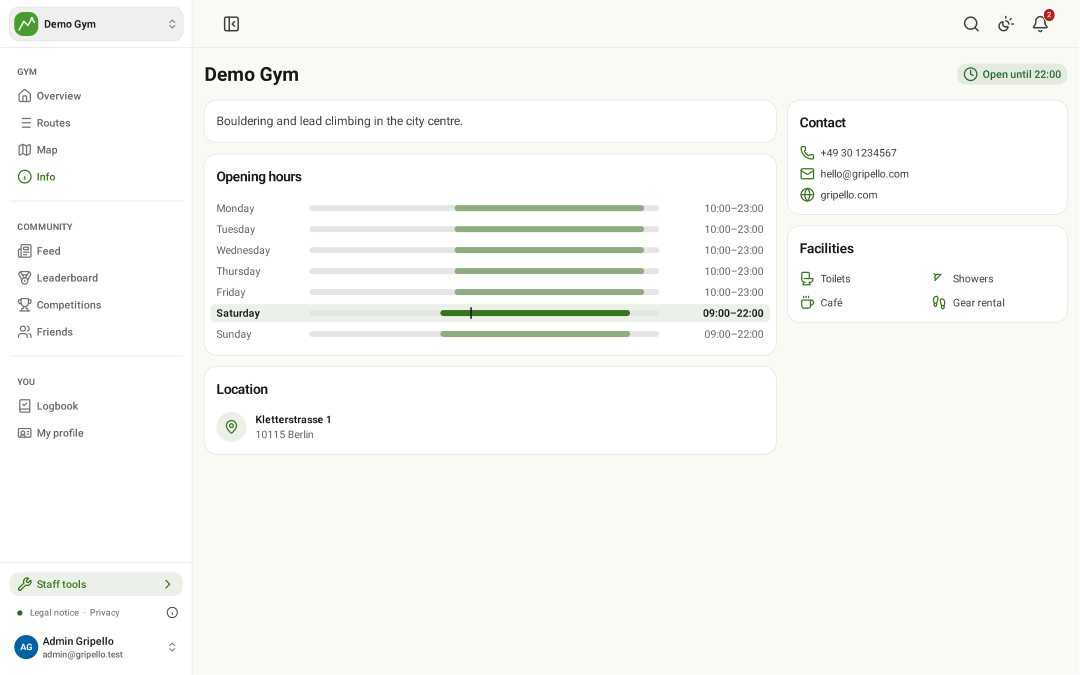
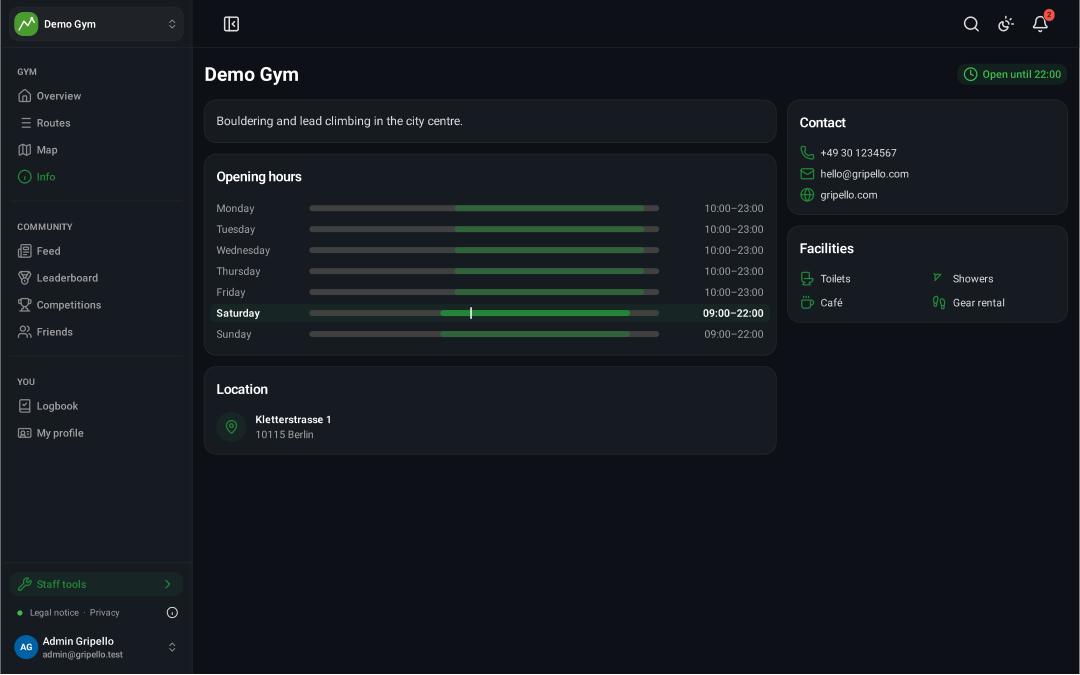
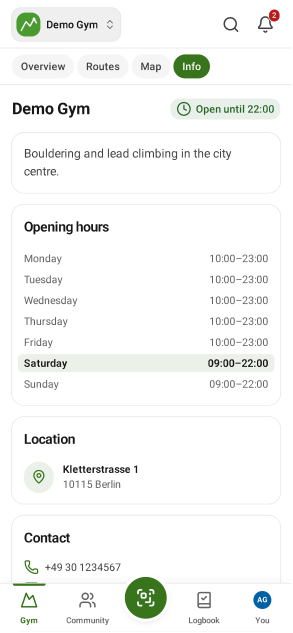
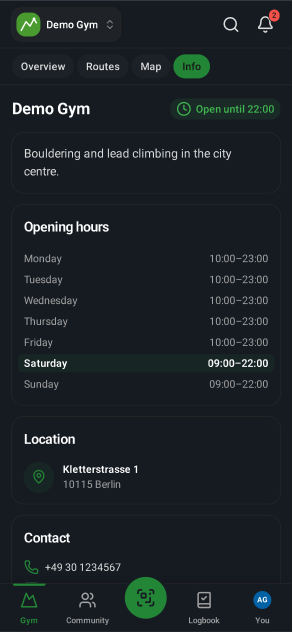
- Open Info for opening hours, contact, facilities and address.